
CleanMy®Phone: Storage Cleaner is an intelligent iPhone cleaning application with useful AI features and a comprehensive set of tools that can help tidy up your device. It’s also pretty affordable, as far as paid iPhone cleaners go.
But like all applications, CleanMyPhone isn’t for everyone. It has both strengths and weaknesses, and whether or not its features are right for you depends on your specific needs. We help answer that question, and many more, in our deep dive into MacPaw’s iPhone cleaning app, Clean My Phone.
Table of Contents
Summary
Clean My Phone was created by the well-known developer team MacPaw. Their most popular product is an app called CleanMyMac X, which we’ve often recommended on this site. They also have other utility apps as well, like Archives and SpyBuster, but today we’ll be focusing on their iPhone cleaning app.
What is the Clean My Phone app? It’s primarily a library cleaner with a big set of features that help you eliminate photo and video clutter, as well as optimize your storage space (along with a feature to merge duplicate contacts). Based on our experience, it’s a good app overall! But since it does cost money, the question becomes: is it worth paying for?
Our Clean My Phone review will help you answer that question by going deep into its features, pros and cons, costs, and real-life user experience.
How Much Does CleanMyPhone: Storage Cleaner Cost?
Despite coming from a well-known developer, CleanMy®Phone: Storage Cleaner is fairly affordable, especially for what the app offers in terms of features and overall quality. Here’s a quick breakdown of the app’s available subscription options:
- $4.99 per month
- $19.99 per year
- $34.99 for a lifetime subscription
When you first install the app, you get access to Clean My Phone Free–a 3-day free trial that grants you access to CleanMyPhone’s entire suite of tools (which is pretty big). Without a free trial or subscription, the app is severely limited—but we appreciate having the ability to still access its tools, if only to review.
Even with that considered, CleanMyPhone drives a solid bargain compared to other paid competitors; this app’s monthly subscription is the same price as the weekly price of other apps. Based on MacPaw’s track record, we can see this app being a good deal for the right users.
Main Features
CleanMyPhone has a comprehensive set of library cleaning features that provide almost everything you need to clean up your photos and videos, along with a basic contacts cleaner. While it lacks extra features other apps provide (like an email cleaning tool), we appreciate its focused scope and how well-developed its existing features are. Here’s a list of its tools:
- Intelligent library cleaner: Clean up duplicate and similar photos, screenshots, blurry photos, and large videos. You can sort them by size or date to find clutter more easily.
- Video compressor: Optimize video storage by compressing videos, which shrinks their file size with a slight drop in quality.
- Live Photo converter: Convert multiple Live photos into still images. Their short audio and video clips are deleted, saving up on storage space.
- AI organizer: Review your photos and videos as sorted into categories that CleanMyPhone’s AI automatically generated for you (which might work better for your library than iOS’ own generated collections). It even has a “WhatsApp” category.
- Swipe mode: Browse your library in swipe mode, which lets you use left and right swipes to keep or delete individual photos.
- Contacts cleaner: See all duplicate entries in your contacts and merge them. You can let CleanMyPhone merge groups of similar contacts automatically or review them yourself.
- Storage health dashboard: Get a bird’s-eye view of the photo categories taking up the most space, along with how much storage they’re using up.
- Sensitive media collection: Review all the media you chose to keep or exclude from deletion to ensure that nothing’s missing.
- Delete All Media button: Completely wipe your entire library with one button, located in the app’s settings page for safety.
How to Use CleanMyPhone: Storage Cleaner
To present CleanMyPhone: Storage Cleaner’s user experience as faithfully as possible, we created a step-by-step guide on how to utilize its core features to clean up your device. You can follow along if you want to try the app, but we wrote this guide in a way that walks you through the entire experience without needing to download it yourself.
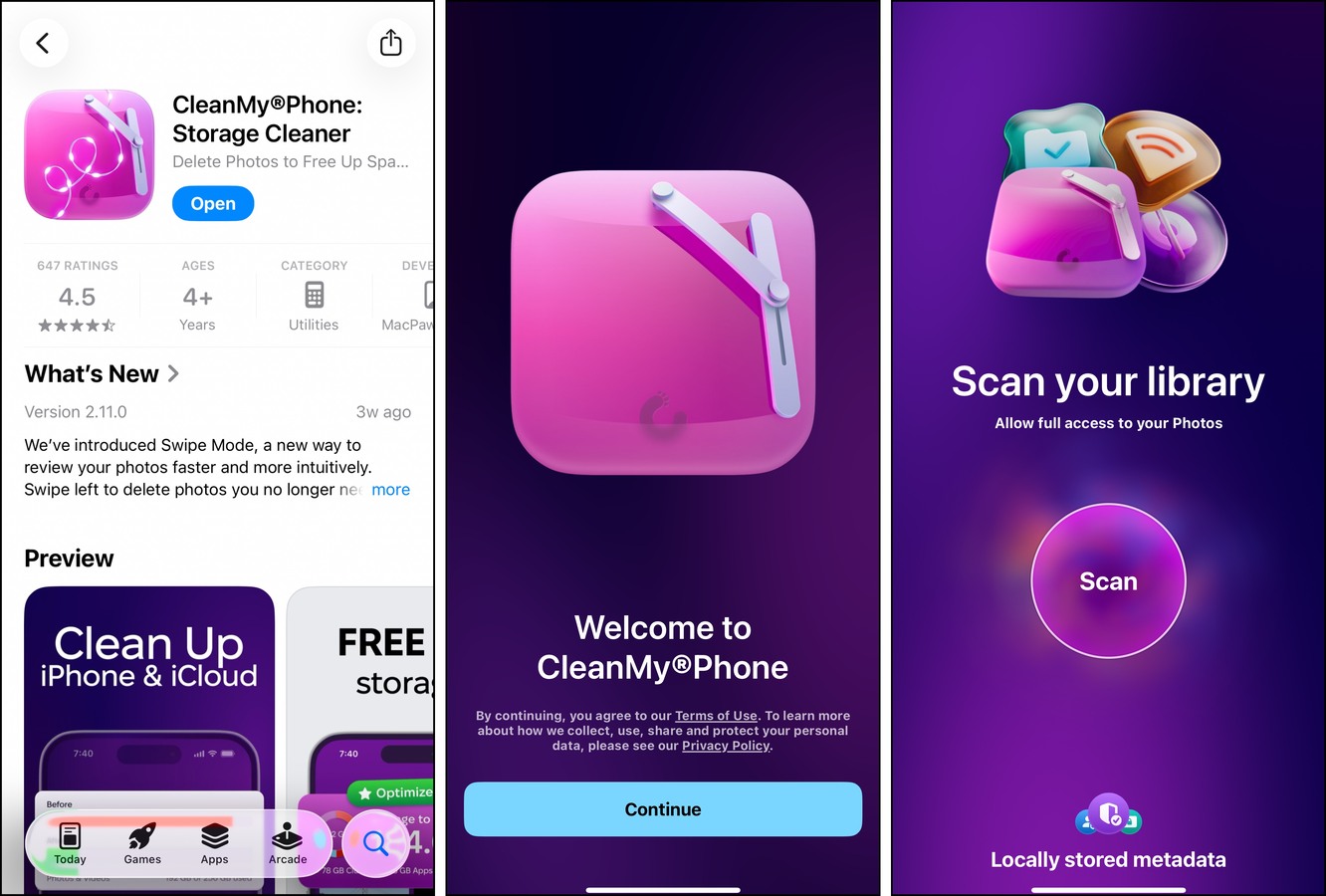
Step 1. Download and install CleanMyPhone: Storage Cleaner through the App Store and grant Full Access to your media library.
Step 2. Tap Declutter on the bottom menu. You’ll find several categories of clutter compiled here, and we liked that they were organized by storage space consumption. You can tap the Clean button to get rid of everything on that list, but we’ll show you the Duplicates category to give you an idea of how they work.
Step 3. Upon opening the Duplicates category, you can tap Select All to mark all duplicate photos for deletion, or you can review each group of duplicates individually. The meatball menu lets you sort photos by size or date, which is a feature that is present in all Declutter categories. Once your duplicates have been selected, tap Clean.
Step 4. After deleting your duplicates, return to the Declutter tool and go through the rest of the categories—don’t forget to declutter your contacts! Tap the Similar Contacts category, mark the contacts you want to merge, and click Merge.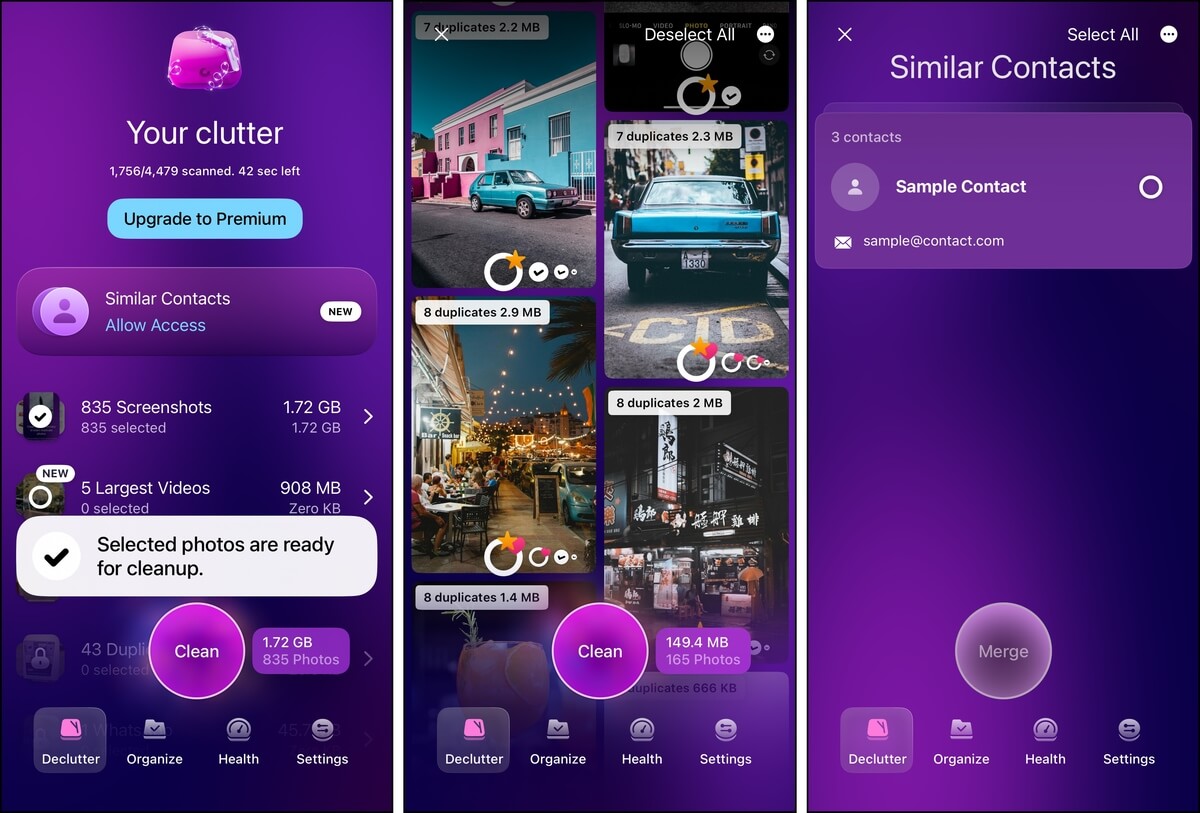
Step 5. Next, navigate to the Organize tool. At the top, you’ll find the video compressor and Live Photo converter. Tap Compress Videos to get started. Tapping the Select All (and pressing Compress) will allow you to process up to 10 videos at once, but you can compress them individually as well. After compressing your videos, return to the Organize menu and tap Turn Live to Still.
Step 6. You can convert up to 200 Live Photos at once—tap Select All, then press the Convert button. Remember that you can use the meatball menu to sort your photos.
Step 7. Finally, navigate to the Health tool to review all media categories again on your device, in order of the amount of storage space used.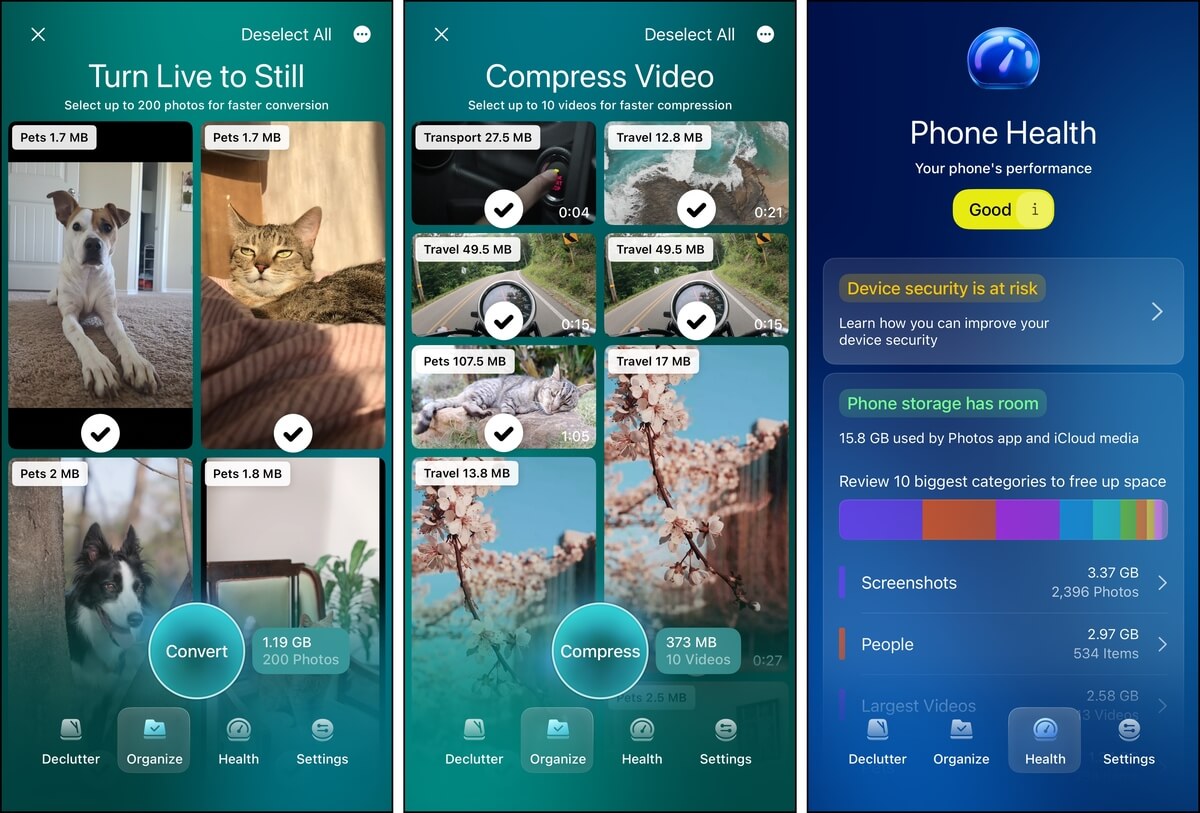
After deleting any media using the app, make sure to delete them again from the Recently Deleted folder in the Photos app to free up storage space.
Pros & Cons
CleanMyPhone has a very good strength-to-weakness ratio compared to many other paid apps. Its pros revolve around its features; it has a lot of tools that cover different types of media clutter, and they are designed to make cleanup as easy as possible.
That said, CleanMyPhone’s few cons can be a deal-breaker for a certain set of users, especially since the app isn’t free itself. Here’s a short list of CleanMyPhone’s best and worst points:
- Offers a well-rounded set of features
- All views always show individual file sizes
- Sorting by date and size is always available
- All operations can be used on multiple photos at once
- The app has good pricing options compared to many of its competitors
- No “throwaway” miscellaneous features (like “charging animations”)
- Confusing interface and feature navigation; users will have to explore a bit to get familiar
- The free plan is very limited (but at least the app is accessible for free)
- The similar photo cleaner is not as “aggressive”; there are fewer results, which makes it more accurate but less efficient
- Lacks other common cleaning features, like an email tool
Is Clean My Phone App Safe?
Yes, CleanMyPhone: Storage Cleaner is safe for your iPhone. It has a feature where any photos or videos you delete using the app are still saved in the Recently Deleted folder in iOS Photos—this provides an additional safety net in case you accidentally erase something important. Changes also sync perfectly fine with iCloud, and we did not find any signs of malware after using it extensively.
However, we still recommend creating a backup before using *any* app on your device that affects your data in any way.
Final Assessment
CleanMyPhone: Storage Cleaner is a very strong contender amongst paid iPhone cleaner apps. It has nearly as many features as apps that cost a lot more, while being reliable and thoughtfully developed.
We do think the app’s interface could be a lot better, but it had a lot of quality of life features that made up for navigation issues—like the omnipresent sorting ability and visible file sizes. The app also had unique features that made cleanup so efficient, like its AI-generated categories.
And its library cleaner not only cleans up clutter, but also helps optimize video and Live photo storage. With the addition of the contacts cleaner, the app’s almost got nothing missing.
Overall, this app is a reliable choice if you have the budget and are primarily concerned with library cleanup.