
Choosing the RIGHT iPhone photo organizer can help you get a big cleaning job done – fast. But there are dozens of cleaning apps on the App Store, and while they all look very similar, certain tools may have case-specific features or approach cleanup in completely different ways (e.g. AI).
So, we compiled the 10 best photo organizer apps for the iPhone in 2026. Not only did we cover the best-performing tools we could find, but we also selected apps with innovative (but logical) features that can make cleanup faster and more efficient.
Table of Contents
5 GOOD Reasons to Use iPhone Photo Organizers
In our experience, if you save a lot of photos, screenshots, or videos, you’ll soon find the native Photos app lacking. Not in superficial aspects, like its interface, but in core features that greatly affect how fast and convenient photo cleanup can be.
As we’ll briefly summarize below, third-party apps not only fill gaps in functionality but they can also provide more advanced iterations of the Photos app’s features:
- Organization. Organizing in the native Photos app is easy enough, but third-party apps can make it more efficient. For example, one of our featured apps uses swipe gestures and strategically placed buttons to delete, favorite, archive, and sort photos into albums.
- Cleaning. Cleaner apps give you a bird’s eye view of your storage space and usually come with powerful sorting tools that make it easy to find large, low-quality, and duplicate or similar photos (that even the native app misses!).
- Batch operations. Third-party apps provide more options to manage photos in bulk. For example, most apps let you select all the photos on your iPhone, instead of going album by album with the native Photos app.
- Cross-platform synchronization. If you use devices or even cloud storage services outside of the Apple ecosystem, some apps can synchronize changes across several platforms. Note that most apps apply changes to your iCloud library by default.
- AI features. AI is deployed in many unique ways that make photo organizing quicker, easier, and automated. For example, one of our featured apps can find low-quality images for you — like blurred photos, photos where you aren’t smiling, etc.
Our Top 10 Photo Organizer Apps For iPhone
In this section, we’ll break down 10 photo organizer apps for the iPhone based on how effective they are at certain tasks compared to the native Photos app. Below, we briefly cover each app’s main features, their pros and cons, any official pricing information, and our own experience using them.
1. Clever Cleaner: AI Cleanup App
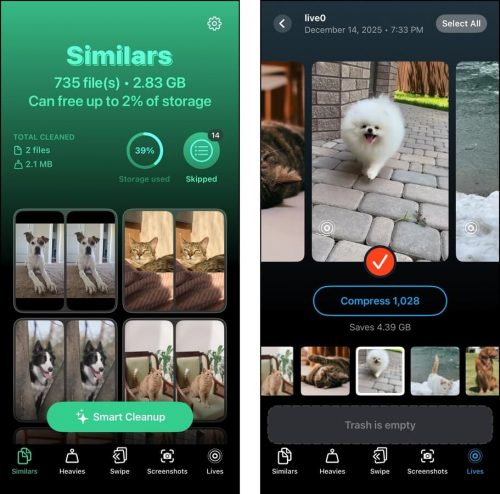
Clever Cleaner: AI Cleanup App is a completely free library cleaning app with no ads, in-app purchases, or trial subscriptions (it will also stay free forever for users who download it while it’s free). While it doesn’t have features that can help you sort photos into albums or folders, it can help you efficiently optimize the media files you already have to make it much easier for you to sort them yourself.
Our favorite feature is the similar photo cleaner, which can identify identical images with minor differences (whereas the native Photos app can only identify duplicates). It also has a feature called Swipe Mode, which allows you to remove unwanted photos from your library using swipe gestures. Your photos are automatically sorted into months, which makes it easier to systematically eliminate clutter–so you’re only left with the photos you do want to keep. The app has a lot of other cleaning features we’ll cover in more detail in the features section.
Overall, even though it lacks the album organization tools other apps on this list provide, Clever Cleaner is an excellent app for keeping your photo library neat. It’s a great app for pruning your library before sorting your photos and videos, and it’s a perfect supplement to iOS Photos in case you don’t want to import your library or manage your albums through a third-party application.
Key Features:
- Similar & duplicate photo cleaner: Clever Cleaner can identify duplicate photos and photos that are just identical or similar, which is a feature that the native Photos app doesn’t have (it can only identify exact duplicates). This tool also features a Smart Cleanup button, which deletes all the duplicate and similar photos Clever Cleaner found, without having to review each group manually.
- Live Photo converter: The Lives tool is a feature that allows you to convert one, multiple, or all Live Photos into still images. We see this being useful for pictures of receipts, documents, and other static content. All your Live Photos are displayed in the Lives tool’s main page–sorting is by date or size, and you can choose where in the gallery you want to begin.
- Screenshot cleaner: The Screenshots feature mirrors the Screenshots album in the native Photos app (you can sort and filter them), with the exceptions of having a button that deletes everything in one tap, and having each image’s file size in the thumbnail. But the inclusion of this feature means that you can clean all your media in one app.
- Swipe Mode: Swipe is the last photo cleaning tool in this app. Rather than helping you delete your images en masse, it allows you to zoom into a month and review that period’s photos one by one. Then, you can swipe left to delete the photo or swipe right to keep it in your library.
- Video cleaner & compressor: The largest videos in your library are automatically sorted by file size on the Heavies page, but you can sort them by date. On this page, you can choose between the Removal tool, which deletes videos, and the Compression tool, which shrinks a video’s file size without severely impacting its visual quality.
- Completely free with no ads
- Fast and simple interface
- Provides good coverage for camera roll cleanup
- Preserves deleted items in a Trash folder for review
- No organization features that let you sort your photos into albums (native or otherwise)
Pricing:
- 100% free; no ads, no in-app purchases, and no subscriptions for a limited time. The developers have noted that if you download Clever Cleaner while it’s still free, it’ll be free forever for your account.
2. Cleansmith: Photo Cleaner
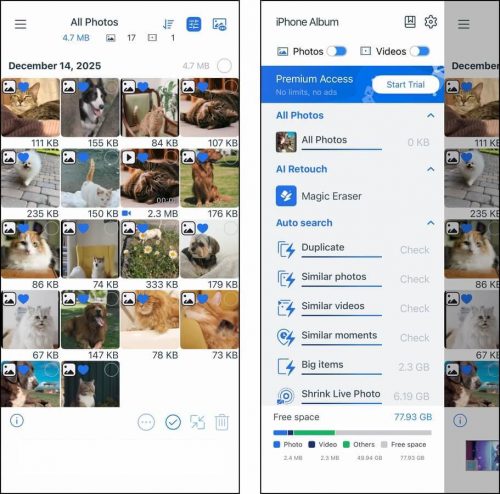
Cleansmith is an all-in-one library cleanup and organization tool with a massive kit of features that can help you keep your photos and videos tidy and optimized. It’s one of the most comprehensive apps we’ve seen of its kind (which can actually be a bit much for some users), so this summary will focus on the highlights.
Our favorite tool from this app is the sidebar. It had many useful pre-generated filters that help with sorting photos into the right albums and decluttering unwanted images. Aside from similar photos and videos, the app could find photos where the subjects had their eyes closed, or it could compile all your RAW photos. It also has a unique filter called “similar moments” which group photos that had a similar context (e.g., similar elements but different composition).
The app also has other features that we don’t often find in iPhone organizers, like an AI eraser (that deletes unwanted elements from photos), and a real-time library storage bar that shows how much storage space your photos and videos use, and how much free space you have left.
Overall, Cleansmith is an impressive 2-in-1 app that can get you very far when attempting to organize your iPhone library. That said, we did find it a bit cluttered, and there are probably users who would find this app excessive for their needs and want a simpler solution.
Key Features:
- Highly advanced filters: When you open Cleansmith’s sidebar, you’ll find a plethora of different pre-generated filter options that can help with both organization and cleanup. Some notable filters include similar media, big items, low resolution, closed eyes, various media types (selfies, portrait, long exposure, etc.), and many more.
- Similar detection parameters: Cleansmith can detect similar photos, videos, and moments. In addition, you can adjust the level of similarity that the app will use as a threshold for flagging images.
- Live Photo cleanup tool: Live Photos can be compressed, which shrinks their file size but retains their “live” state. Or they can be converted into still images.
- Album management tool: You can access all your Photos app albums directly from the sidebar, and you can change the order of their appearance. From inside albums, you can include or exclude photos via filters like media type, data, file size, and more. Photos can also be added to albums from any view.
- Multimedia compressor: Aside from Live Photos, you can also compress photos, videos, GIFs, Bursts, and slomo media.
- AI Magic Eraser: The AI Magic Eraser allows you to highlight an element on any photo by dragging your finger, and then deletes it intelligently. Some example use cases include erasing backgrounds or removing visual clutter from an otherwise nice picture.
- Storage Monitor: The file sizes of your photos are displayed everywhere in the app; below their thumbnails in gallery views, beside each of the filters, and as part of the storage bar at the bottom of the sidebar.
- Private album: The app has a private folder where you can store sensitive photos and videos, and protect them with a password.
- Widgets: Cleansmith provides widgets that you can add to your homescreen, which allow you to monitor your device’s storage space.
- In-app guides: There are several links to guides that cover all of the app’s features, including in-app slideshows and links to YouTube videos.
- Provides a substantial kit of cleanup and organization features that are not usually seen together but provide comprehensive coverage
- The guides can help users figure out how to clean up their target data from the start
- Most of the features have good details–like being able to modify similar photo detection rates and the option to compress or convert Live Photos
- Ads aren’t as intrusive compared to other apps that have 10-15 second video pop-ups
- Due to the sheer number of features, the interface is quite cluttered
- The free version has daily limits
Pricing:
- 3-day free trial
- Weekly subscription: $6.99
- Annual subscription: $22.99
- Lifetime subscription: $29.99
3. Slidebox
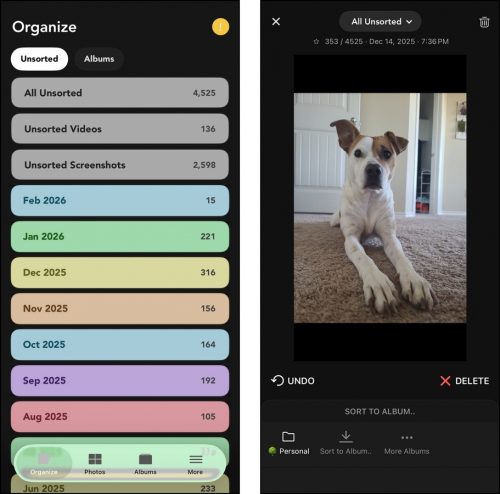
Slidebox is a popular iPhone organizer app that helps you efficiently clean up your photos and videos and quickly sort them into albums. It only has a few simple but powerful features specifically geared towards intuitively managing your library.
In a nutshell, Slidebox shows you your photos and videos one by one, and you can use swipe gestures or tap well-placed buttons to delete the current photo or save it to one of your albums. This feature allows you to take multiple actions on your media with one swipe or tap, compared to having to tap multiple elements for different actions (like with the native Photos app). The other “main” interface we saw was the albums and folders menu, which displayed all our folders and albums as a convenient list that could be organized and edited in-app.
Overall, we found that Slidebox isn’t ideal if you want to nuke the bulk of your library or clean up all your duplicates and similar photos. But it’s one of the best apps for easily organizing your library into albums and folders conveniently but with precision.
Key Features:
- Swipe mode: Swipe mode is Slidebox’s main attraction. All your photos and videos are organized by month, and you can go through each month’s media one by one.
- Album management: Any photos that haven’t been sorted into albums are compiled in their own “Unsorted” album; this helps you ensure that all your photos and videos have been organized.
- Great interface and user experience
- Automatically syncs changes to your iCloud library (if enabled)
- No “bloat” features
- Fewer features compared to other apps, but this also may also be considered a “pro” for minimalist users
Pricing:
- Limited free version
- Monthly subscription: $4.99
- Annual subscription: $49.99
4. MyPics
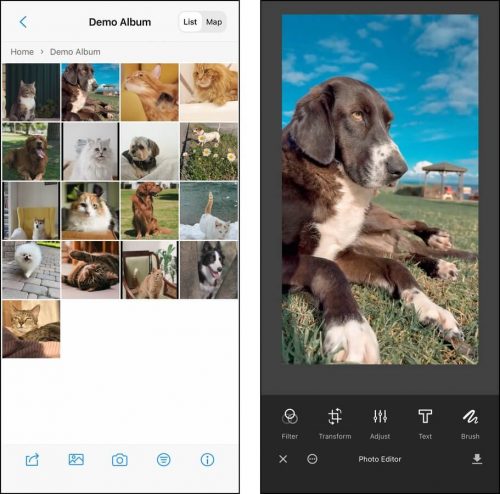
MyPics is the first entry we’re featuring on this list that is a total Photos app replacement. It aims to help you manage your library better than you could with the native app by adding a lot more features and customizability.
With MyPics, you can: secure the app with a passcode, organize your albums, edit photos and videos, take photos with in-app filters, and view your photos and videos in calendar view or map view for a visual representation of your favorite memories.
We were also impressed that it can import and export data to and from Windows and Mac computers. However, MyPics doesn’t directly integrate with the Photos app – you’ll have to import the data you want to use with MyPics and all changes (e.g. organizing albums) only apply within the app itself.
Overall, we strongly recommend MyPics if you’re looking for a beefier version of the Photos app. But if you’re looking for a simple organizer that integrates with iOS’ existing tools, MyPics may feel too bloated.
Key Features:
- In-app album manager: Once you import your photos and videos to MyPics albums, the Photos app no longer has access to them, nor is it affected by any modifications you make in-app. MyPics albums also have more advanced features than the native ones, as you can manually organize photos, create tags and use tags, view them by List or Map, and take photos directly from the album. Note that Live Photos can only be set to be imported as either images or videos.
- Dropbox integration: You can also set specific albums to automatically be uploaded to your Dropbox (a cloud storage service).
- App passcode: The entire app can be locked by a password, which a user needs to enter before they can access the app.
- Display themes: You can choose from dozens of themes in the Settings menu to customize the app’s interface.
- Calendar view/map view: The app has a calendar view, where you can choose which month you want to review. The days of that month are displayed like a calendar and are shown as empty or with a cover photo. Then, you can tap on a specific day to view the photos and videos you saved on that date.
- Photo and video editors: When you view a photo, you can directly access the in-app photo editor. It can add filters, crop or rotate photos, adjust image properties (brightness, contrast, saturation, etc.), add text, and add brush strokes.
- Video editor: The in-app video editor allows you to add filters, crop or rotate videos, adjust visual properties similar to the photo editor feature, and trim clips.
- Packed with features that can help manage your photos in multiple ways (organization, privacy, photo and video editing, etc.)
- Nice customizable interface
- Useful timeline visualizations (view photos on a calendar or a map)
- Various import/export abilities
- You have to import photos and videos into the app from the camera roll
- Much too cluttered for users who want a simpler tool that can integrate with the native Photos app
- Some features are better as separate tools in most cases (e.g. photo editor)
Pricing:
- You can use the free version for up to 500 photos (as of this writing)
- Annual subscription: $8.99
5. Secret Photo Vault: Keepsafe
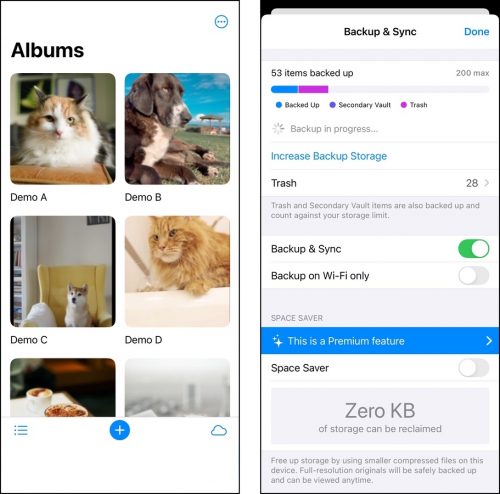
Secret Photo Vault: Keepsafe is a security-focused iPhone photo album app. You can sort photos by date added or date created, set the cover photo for each album, give each album its own passcode, and enable Space Saver (which is similar to iCloud’s Optimize Storage feature).
You can also set a separate passcode for the app itself. When used in tandem with the integrated camera (which can save new photos directly to a secured album), you can ensure that your pictures and videos are well-protected.
Other useful features include the ability to back up to 10,000 files to a cloud server and synchronization across multiple devices (cross-platform) with Keepsafe installed.
Overall, Secret Photo Vault: Keepsafe is an excellent photo security app that happens to have a decent but basic photo organizer.
Key Features:
- App passcode: You can set a passcode for the app, which will be required before the app can be opened.
- Album management and security: Passcodes can also be set for individual albums for added security, in case someone finds out the app passcode.
- Cloud backup & sync: Similar to iCloud Sync, you can back up and sync your files to Keepsafe’s servers. Basic users can upload up to 200 files, Premium users can upload up to 10,000 files, and use the Space Saver feature to compress to local copies on your phone (so they take up less space locally).
- Integrated camera: You can capture photos and videos directly from Keepsafe, so they are automatically saved in the app (and you won’t have to manually import them).
- Cross-platform synchronization: Photos and videos that you synced with Keepsafe can be accessed from any device with the app, including Android devices.
- Cross-platform (iOS and Android)
- Free version has a lot of useful features
- Premium features actually feel worth it
- All-around security; privacy from prying, protection from data loss
- Free version has ads
- You have to import photos into the app
- Organization feature is not as fluid or innovative as other apps, as this app is more focused on security
Pricing:
- Basic subscription is free forever
- Monthly subscription: $15.49
- Annual subscription: $42.99
- Lifetime subscription: $179.99
6. Google Photos
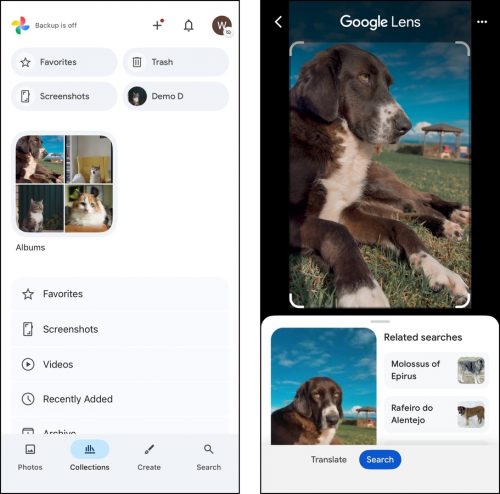
Google Photos is another strong candidate if you want a total iPhone photo gallery app replacement for iOS Photos (and iCloud for photos at the same time). With Google Photos, you can automatically back up your photos to its cloud server, where you can manage them as you wish.
It integrates seamlessly with different devices and operating systems, so you can manage your photos and videos on your iPhone, a PC, a Mac, or an Android tablet and have the changes synchronized everywhere (as long as Google Photos is installed).
The app also provides many unique album management and social features, such as topical smart albums that can automatically sort your photos, as well as useful sharing suggestions for contacts. We even found Google Lens, which runs images through the search engine, to be helpful for enriching album information.
Overall, Google Photos has a lot to offer as a potential replacement for the Photos app, especially if you already use the Google Workspace. It also has the best social features compared to any of the other entries. However, there are other apps on this list with more detailed album management features, if that’s strictly what you’re looking for.
Key Features:
- iCloud storage & synchronization: You can have Google Photos automatically upload and synchronize your photos and videos to its cloud server. This means you can access your library from any device with Google Photos installed or from the Google Photos website.
- Google Lens: Google Lens is a feature that allows you to run your photos in the Google search engine in order to identify elements in its content. For example, you can use Google Lens to identify an insect you just took a photo of.
- Intelligent photo sharing: Google Photos offers “smart suggestions” that allow you to share relevant photos with your contacts.
- Smart albums: You can assign specific subjects to albums (e.g., members of your family), so Google Photos automatically sorts new photos related to those subjects into the appropriate albums.
- Chromecast & AirPlay support: You can access your Google Photo library on a supported TV and other Chromecast and AirPlay devices.
- Autogenerated personal content: Google Photos can generate personal GIFs, collages, and movies out of your photos and videos, as well as collages of photos taken one year from the current date.
- Can integrate with many different devices and operating systems
- Solid as a free photo organizer – 15 GB of free storage with no ads
- Clean integration with the Photos app
- Speedy performance
- Doesn’t really work with iCloud and the Photos app (in a way that using them together makes sense), so you’ll be out of the Apple ecosystem
Pricing:
The pricing of Google Photos is tied into a Google One subscription. Google One is the collection of all Google cloud services, including Google Photo, Google Mail, and Google Drive. Prices are tiered based on the amount of storage.
- 100 GB – $1.99 per month or $19.99 per year
- 200 GB – $2.99 per month or $29.99 per year
- 2 TB – $9.99 per month or $99.99 per year
7. Mylio Photos
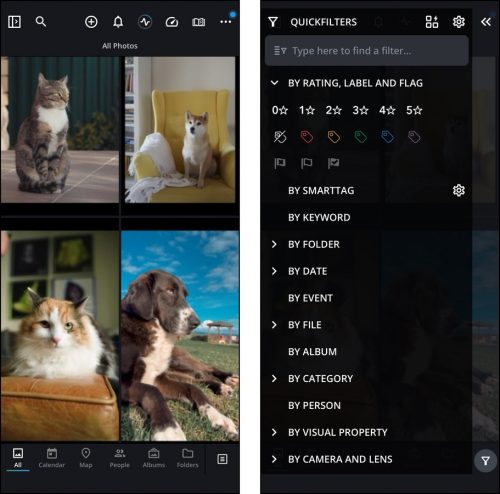
Mylio Photos is an ambitious and thoughtfully developed iPhone photo storage app with impressive AI features.
We were thoroughly impressed at how easy it was to pull up our desired photos using the search tool and Mylio’s autogenerated tags. These also help sort photos and videos into logical categories, often negating the need to create albums ourselves.
Its privacy features (SafeShare, offline sync) provided a deeper sense of security than the simple passcode approaches other apps took and its Photo DeClutter and social media crawler tools are innovative and welcome features.
Overall, Mylio can make an impressive new home for your photos and provide extra security that other apps can’t. However, synchronization is totally offline.
Key Features:
- Multiple import sources: Mylio Photos can import photos from Apple Photos, external drives, internal storage, and online services like Facebook and Flickr.
- Multi-platform synchronization: You can synchronize your library across all your devices, including computers and even storage devices.
- Cloud storage: Mylio Drive+ is an optional storage add-on that allows you to back up and synchronize your library media in their original quality, rather than their optimized versions (which is the default).
- Protection Vault: Protection Vaul creates full-quality backup of your library to an external drive, a computer, or Mylio Drive+.
- Advanced filters: You can organize your photos using many useful filters, including unique ones like visual property (if it’s edited, cropped, etc.), camera and lens, “smart tag” (AI categories like animal, food, etc.), and even custom. The app also provides “QuickCollections”, which are groups of filters–it has some useful ones like “Camera Cleanup”, which filters for blurry photos or photos with closed eyes.
- LifeCalendar: Your entire library is displayed in a gallery of months, with each month displaying one of your photos as a cover. Tapping a month will open a scrollable calendar that displays the days within the month, and each day also has its own cover photo.
- Library cleanup: Mylio Photos has a feature called “Free Up Space”, which scans your Photos app library and checks its own database to verify that all of your media has been backed up. Then, it deletes that data (after confirmation from the user).
- Seriously impressive suite of features (both for management and privacy) – this app is hefty in a good way
- AI tags make it super easy to find pictures
- We missed the convenience of online synchronization
- Not much focus on album management itself, though the app’s features make that task easier
Pricing:
- Monthly subscription: $21
- Annual subscription: $240
- 2-year subscription: $360
8. Flickr
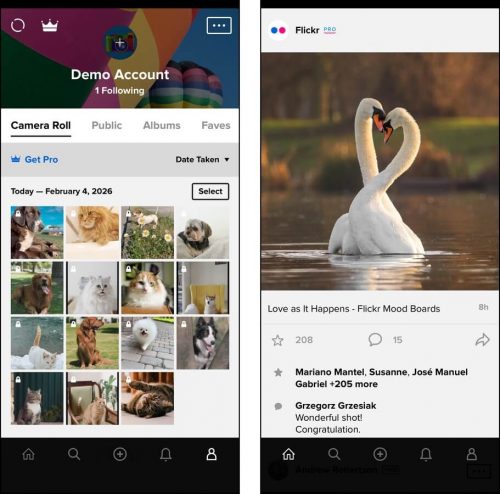
Flickr is a very well-known and well-respected name in the world of photography, and its iPhone app provides a way to access its tools and community on the go.
Flickr is an online platform where you can upload your photos, organize them into albums and collections (more on this later), and – if you want – share them with 100M+ fellow users made up of professional and amateur photographers, enthusiasts, and the average joe or jane.
While its community is definitely the platform’s main attraction, its organization features are also pretty good.
When you upload photos to Flickr, they are saved to your Photostream (which acts like your iPhone’s Camera Roll). You can create Albums, where you can save particular photos (e.g. Cats). Then, those albums can be added to Collections (e.g. Cats album and Dogs album go in the Pets collection).
You can optimize your gallery further by adding tags, comments, notes, and people to your photos, which works nicely with the search function.
In a nutshell: use Flickr for its community and/or for its online storage and organization combo. For more complex organization tasks, look elsewhere.
Key Features:
- Albums & Collections: You can create albums to organize the photos you upload to Flickr. Albums are shareable and taggable. Pro users can create Collections, which you can use to organize albums into their own groups (for example, you save albums from various trips to a “Vacation” Collection).
- Flickr community: Flickr is primarily a social platform that allows users to post curated photos and share them with others. You can view and comment on other users’ photos, and others will comment on yours (at least, the media you choose to share). Your photos are displayed as albums, collections, galleries, favorites, and as a photostream on your page.
- Auto-Uploadr: If you’re a Pro member, you can enable the Auto-Uploadr feature on mobile devices (iOS and Android) and computers, which automatically saves photos and videos to Flickr’s cloud storage server. Your media is saved to a private album called “Auto-Uploadr.”
- Flickr has a big and established community of talented photographers around the world
- Annual payment option for unlimited uploads
- Not too many actual management features
- If you take a lot of high-resolution photos and videos and you’re not interested in sharing them, Flickr isn’t super worth it
Pricing:
- Free for 1,000 photos or videos (depending on file size)
- Monthly subscription: $15
- Annual subscription: $119
9. Photo Cleaner: Daily Delete
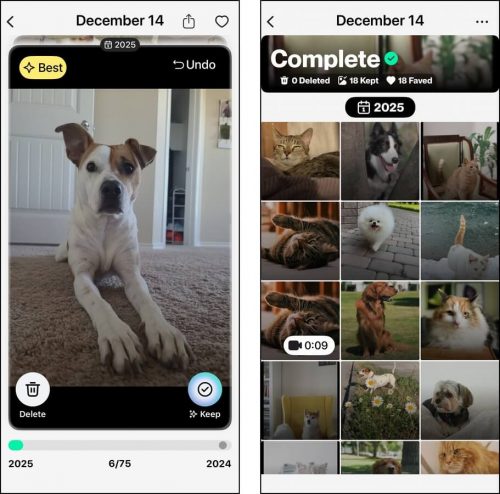
Photo Cleaner: Daily Delete is a simple but effective swipe-based cleaning app. Like Clever Cleaner, it doesn’t have any album sorting or organization tools. However, it can help remove any unwanted photos from your library, so you only have to organize the ones you actually want to keep.
The app is very simple and does one thing: it sorts all your photos based on the date they were saved to your library. These albums are then displayed by month on the main page, and you’re meant to systematically clean up each day of each month until you’ve gone through your library. Daily Delete also goes a step further and uses AI to suggest which photos you should delete, and which ones you should keep. You can see the progress per month via a timeline bar at the bottom of the page.
Overall, Photo Cleaner: Daily Delete is a great way to clean up your library slowly and deliberately before sorting your photos into albums–with this interface, you’re less likely to overlook any clutter. There are certainly users who can get a lot of value from this app, but keep looking if you need comprehensive cleanup features or album organization.
Key Features:
- Swipe-based cleaning: The app’s main page displays each month and all of its dates (each day has its own cover photo). Tapping a date opens the app’s cleaner, which goes through your photos one by one; you can use left and right swipe gestures to keep or delete each photo, or you can favorite a photo with a button.
- AI suggestions: When you open a “day”, the app’s AI feature automatically starts scanning its photo, and suggests which ones to clean. Those recommendations are what appear in the cleaning feature.
- Simple and intuitive interface that can help you clean up granularly through timelines
- Its suggestions improve over time thanks to AI/machine learning
- Everything’s offline, which is good for users who want additional privacy or security
- No album management features
- No bulk processing features
Pricing:
- 7-day free trial
- Weekly subscription: $7.99
- Annual subscription: $55.99
10. Photo Manager Pro
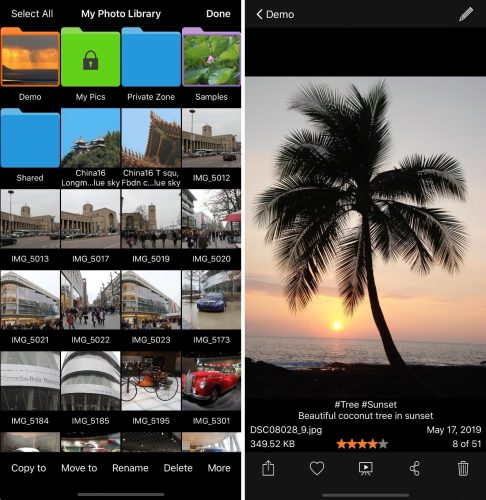
Photo Manager Pro is another iOS Photos replacement candidate with a PC-like interface and user experience. Its features are nothing innovative, but they’re familiar and reliable.
Using drag-and-drop features, you can easily sort photos into folders and subfolders, as if you were using a computer. You can also edit your photos’ metadata, adding more context and helping the search function work more efficiently. It can access your iPhone library directly and integrates with various cloud storage services.
Overall, Photo Manager Pro is a reliable album manager – it may feel a little left behind in features, but it’s a good option if you want something familiar that doesn’t have a lot of modern bells and whistles.
Key Features:
- Folder management: Photo Manager Pro allows you to create folders and subfolders inside the app, without affecting the native Photos app. You can choose a cover photo for each folder, as well as lock them with a password.
- Metadata editor: You can directly edit your photos’ metadata. This includes details you can usually only modify from a computer, like file name, description, keywords, and star rating.
- Cloud storage integrations: The app can be connected to multiple cloud storage services, including Google Drive, Box, OneDrive, and Dropbox.
- AirPlay: You can stream your Photo Manager Pro library to any AirPlay devices you own.
- App & folder passwords: Aside from locking each folder with a password, you can also password-lock the app itself.
- Photo transfer: Photos can be transferred between iOS devices, as well as between your iPhone and your computer (using FTP and HTTP servers).
- Fully-fleshed management app that almost feels as complete as working on a computer
- Solid cloud integrations
- Natively supports RAW photos
- Works with external flash storage devices, such as USBs and SD cards
- No major AI features that could have taken this app to the next level
- No innovative swipe gesture actions
Pricing:
- $2.99; you can’t download the app without paying upfront (through the App Store)
Tips to Make Photo Organizing on Your iPhone Easier
Aside from downloading photo organizer apps on your iPhone, there are a few other best practices you can use to make cleanup even easier and may allow you to perform your organizing routine less often.
First, use the Photos app on your Mac if you own one and have iCloud enabled on both devices. It’s way easier to set up and modify your albums and folders with a keyboard and mouse or trackpad. Second, delete unwanted photos right after you capture them to avoid filling up your library without noticing, and it’s super easy to get used to this behavior. Finally, create “pre-organizing” albums – like “To Sort”, “Keep Forever”, and “Review Later.”
This gets you into the habit of categorizing your photos ASAP, makes you mindful of the photos you take as you save them, and makes it easier to sort them later. But if you’ve already got a full camera roll, we also prepared another guide on how to organize thousands on your iPhone WITHOUT duplicates.