
There are good free data recovery software that can restore all your files, restore some of your files, or at least give you a preview of the files you can definitely get back. However, each app has unique strengths and weaknesses that make it suitable for some users but not others.
To save you from having to navigate through dozens of “free trial features” on your own, we compiled a list of the 5 best free data recovery software tools available online. We’ll tell you exactly what they do as well as what their free tools entail.
Table of Contents
1. Disk Drill for Mac
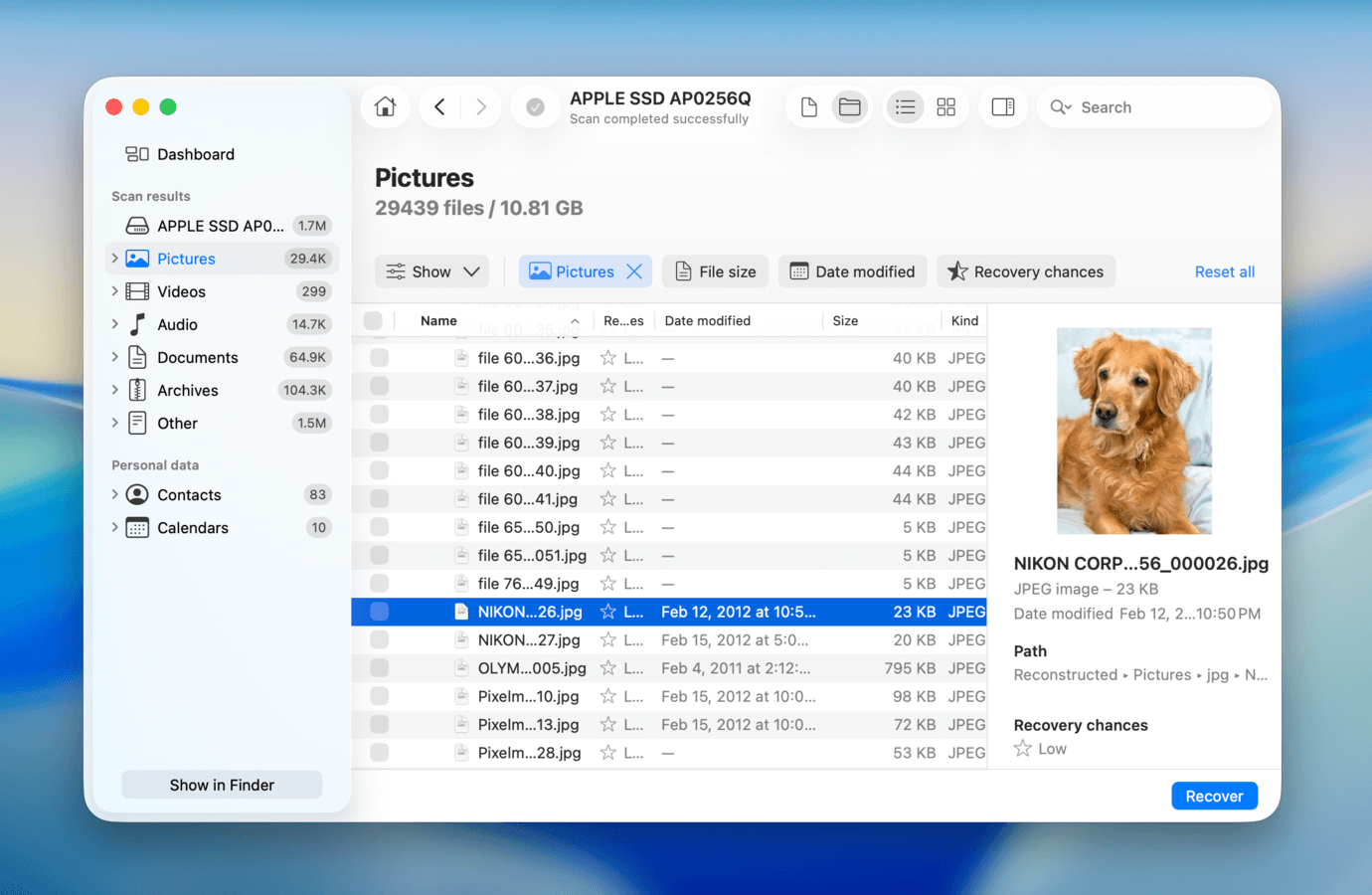
Disk Drill for Mac is a popular data recovery software known for both its performance and its user experience, making it a common professional-grade recommendation for beginners. It’s fully compatible with macOS Tahoe, and based on the developers’ logs, Disk Drill is usually one of the first to support new OS updates. It works on Macs using Intel, Apple Silicon, and even T2 chips (because it has its own kext).
Free Version
A free version of Disk Drill lets you totally evaluate the recovery results by previewing the files after scanning. If you need to recover your files, you can always upgrade to the Pro version for $89, with optional lifetime upgrades for $29. There’s also an Enterprise version for unlimited commercial recovery, and it costs $399.
- Recovers almost 400 file formats
- Extremely easy to use
- Extra free disk tools
- Free recovery evaluation
- Free unlimited data preview
- Can restore the original structure of files and folders in the scan results
- The Advanced Camera Recovery module is powerful, reliable, not commonly built into recovery apps, and can be the difference between recovering useless files and intact videos
- Free updated backup tool
- No option to scan individual folders
- Doesn’t have wide support for hardware RAID arrays
Features
Disk Drill for Mac supports all major devices and commonly used file systems, so you can use it to recover data not just from your Mac but also from USB flash drives, external hard drives, iOS and Android devices, and memory cards.
- Wide range of support. Disk Drill is capable of recovering any file type based on metadata from FAT, exFAT, HFS/HFS+, APFS, and other file systems. It also natively recognizes nearly 400 file type signatures, which can improve your recovery rate.
- Recovery Vault & Guaranteed Recovery. Recovery Vault runs in the background and saves the metadata of any file that gets deleted. It takes up little space and greatly increases the recovery success rate in case of data loss. You can also enable Guaranteed Recovery, which takes up way more space but literally guarantees recovery as it makes copies of your files. Both features are completely free, as is recovering data from a Guaranteed Recovery backup.
- Additional Disk Tools. Besides Recovery Vault, other tools include a duplicate file eraser, a disk health monitor that tracks S.M.A.R.T. indicators and warns you of risk, and a disk space analyzer that provides a visual representation of your drive’s storage space.
- Advanced Camera Recovery. ACR is one of Disk Drill’s most powerful and unique features. If you’re trying to recover camera files, the Advanced Camera Recovery scan type can look for your videos’ data fragments (that are potentially scattered on your disk) and utilize them during recovery. This greatly increases the chances of your recovered videos being playable. In most cases, regular recovery operations can restore video files, but they often get corrupted or become unplayable.
Supported OS: Disk Drill 6 requires Mac OS X 10.15.7+.
2. PhotoRec for Mac
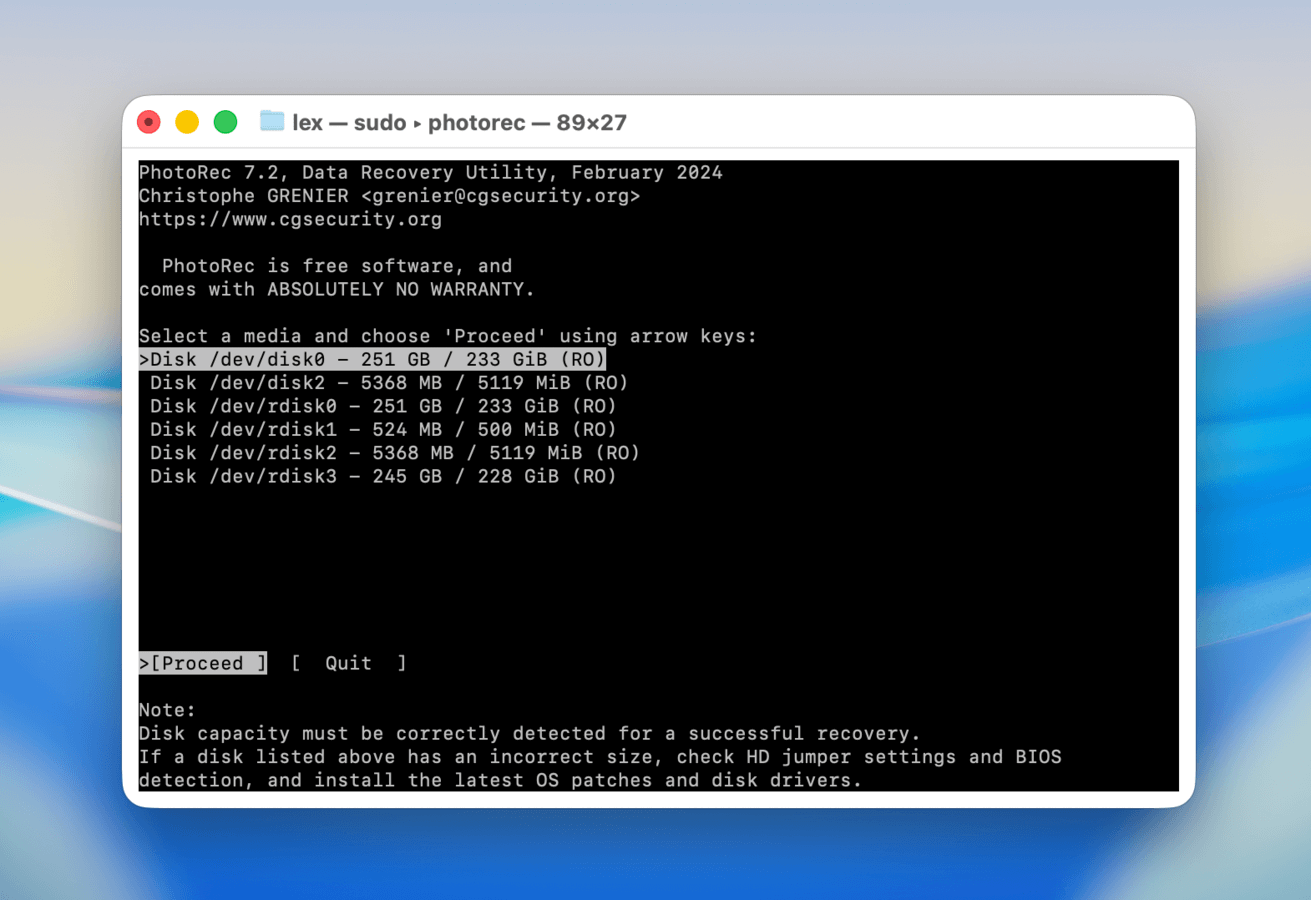
PhotoRec is a well-loved data recovery software that is free, open-source, and highly effective even if it hasn’t been regularly updated. It was developed by CGSecurity, the same software group that’s behind TestDisk.
Free Version
PhotoRec (along with its sister software TestDisk), is 100% free and open-source!
- Free
- Recognizes a lot of different file types
- Very fast and lightweight
- Lets you add your own custom signatures
- Only provides a signature scanner
- Lack of customer support.
- Since PhotoRec and TestDisk are completely free (and open source), updates can be rare
- No GUI; PhotoRec’s interface looks like the Terminal app and only utilizes keyboard controls
- Lack of customer support
- Doesn’t support recovery on Apple Silicon Macs
Features
PhotoRec only provides a signature scanner, but it recognizes a massive number of file types – including RAW photos and propriety documents, like DWG (AutoCAD) files. It can restore data from most common storage devices, except for mobile. It’s also super lightweight and easy to install.
PhotoRec’s biggest problem is that its original interface looks like the terminal app and you can only navigate it using your keyboard. But the CGSecurity website has a lot of documentation and video guides on using PhotoRec, so it’s not technically that difficult to figure out–it just takes more time and effort compared to using other apps with fully developed GUIs.
Another issue is a lack of consistent updates. The latest update was released in February 2024, which added new translations and new supported formats. However, users who need more powerful and up-to-date solutions will still find it lacking. That said, PhotoRec can be “enough” for many users, depending on their data loss scenario (e.g. recently deleted files or formatted drive).
Supported OS: Available for macOS Tahoe (installed via Homebrew)
3. UFS Explorer
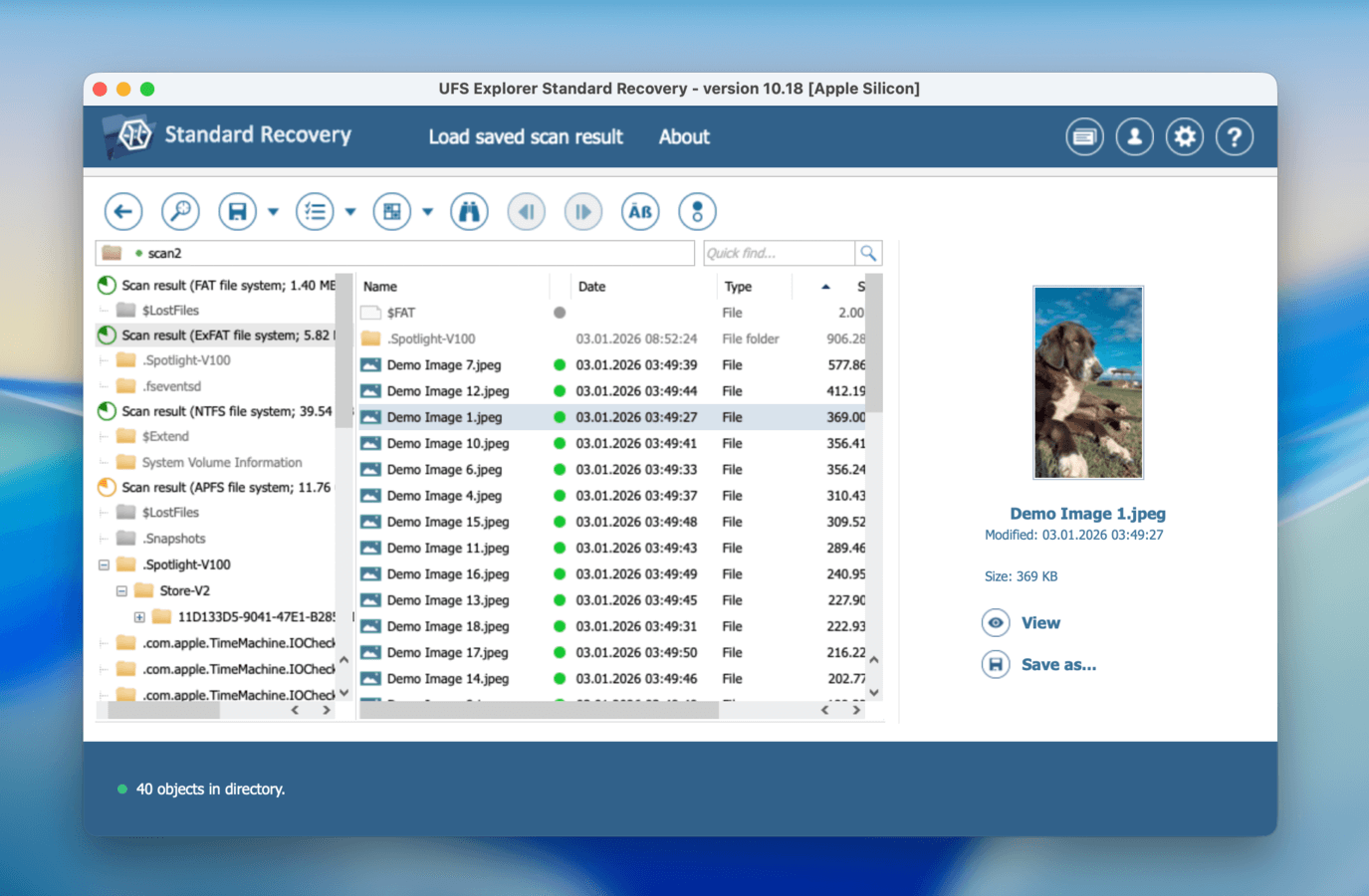
USF Explorer is a commercial data recovery tool that offers users a limited free trial version. The tool employs a Windows Explorer-style user interface for easy navigation through its features to facilitate data recovery on your Mac.
Free Version
The free version of UFS Explorer allows you to test the tool’s functionality and will work with files below 256 KB in size. You can easily upgrade to the paid version if you like the tool and want to recover more data.
- Supports multiple file systems and device types
- Preview files before recovering them
- Quick performance
- File size limitations with the trial version
- The app’s preview function is too limited, especially when comparing other apps on this list
- UFS Explorer offers a lot of different licenses that cover different sets of features; the most comprehensive versions are quite expensive
Features
UFS Explorer can recover lost and deleted data from a wide variety of physical devices, disk images, and virtual machines. The tool supports recovery of all major file systems used on Mac, Windows, and Linux systems and can reconstruct spanned volumes to access and recover their files.
Customizable scanning options enable a quick or longer search to uncover deleted data. Scans can be paused and the results saved for future reference. UFS Explorer can help recover files locked in undetected partitions and retrieve files from disks with bad sectors. The tool can produce a map of bad blocks while reading and imaging a disk.
Supported OS: macOS version 10.15 and above.
4. Wondershare Recoverit for Mac
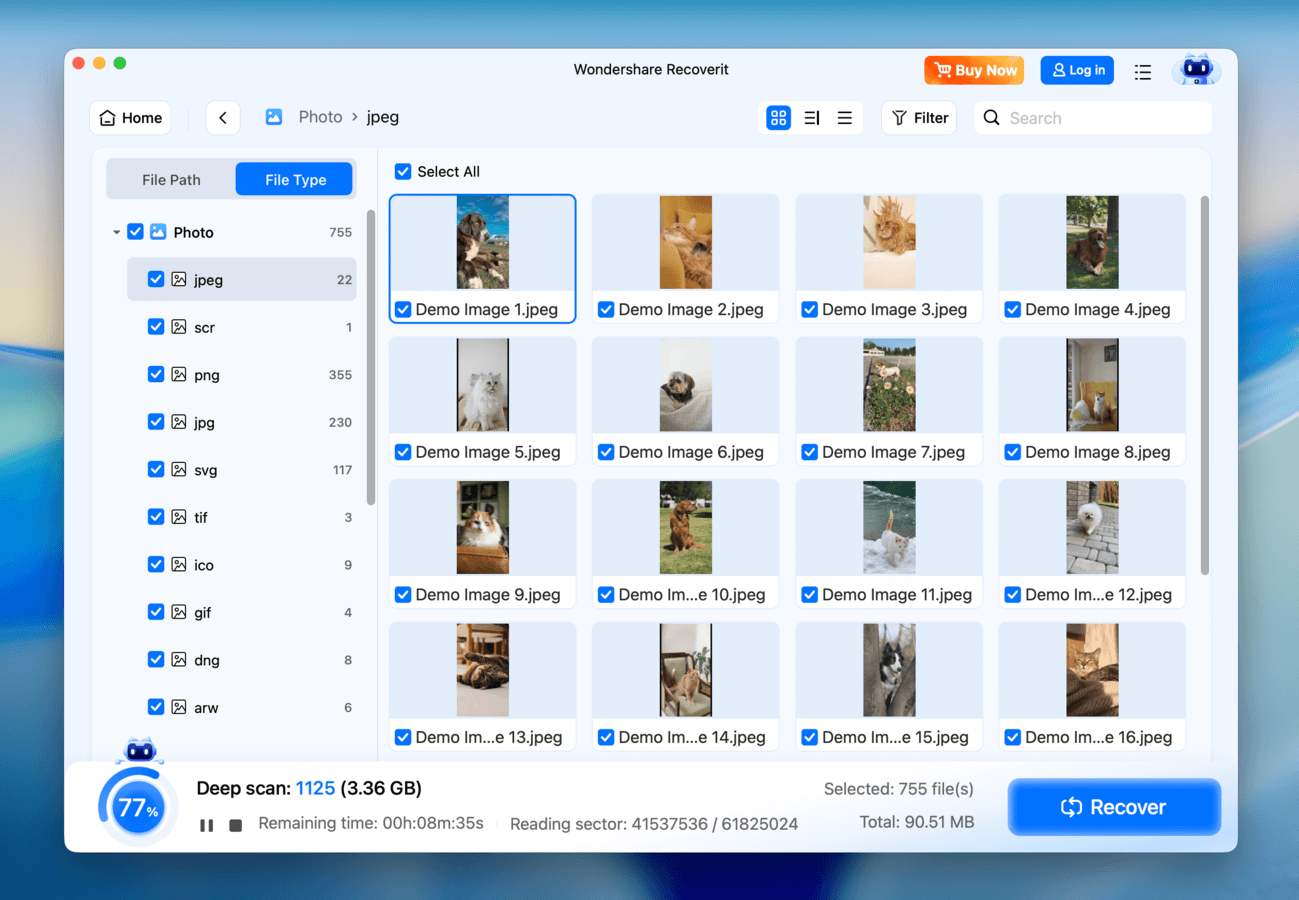
Wonderhare Recoverit for Mac is a modern data recovery software app with average performance but unique features that earn it a spot on this list.
Free Version
The free version of Wondershare Recoverit allows you to preview an unlimited number of files and recover up to 500 MB of data.
- Free 500 MB data recovery
- Reliable video repair tool
- Nice user interface
- Average recovery performance
- Lack of common recovery utilities like session management and file sorting
- Expensive for what it offers (unless you need the video repair tool)
Features
The app has a nice interface that makes it easy for users of any level to pick up and start recovering data. Although Wondershare claims Recoverit supports 1000+ file types, we noticed that it recognized fewer signatures than other apps on this list. However, we were still able to restore a good number of lost JPG, PNG, MP4, and MOV files, among others.
It provides common but appreciated utilities like bootable recovery and a preview tool. Recoverit’s most notable feature is its advanced support for video files. It allows users to search only for deleted videos and it provides a video repair tool that fixes clips that don’t play or even (which we verify to work).
Unfortunately, this positive feedback may be overshadowed by its average performance. That said, we can see Wondershare Recoverit being a useful tool for users who work with a lot of videos.
Supported OS: macOS 10.13 and later.
5. iBoysoft Data Recovery Software
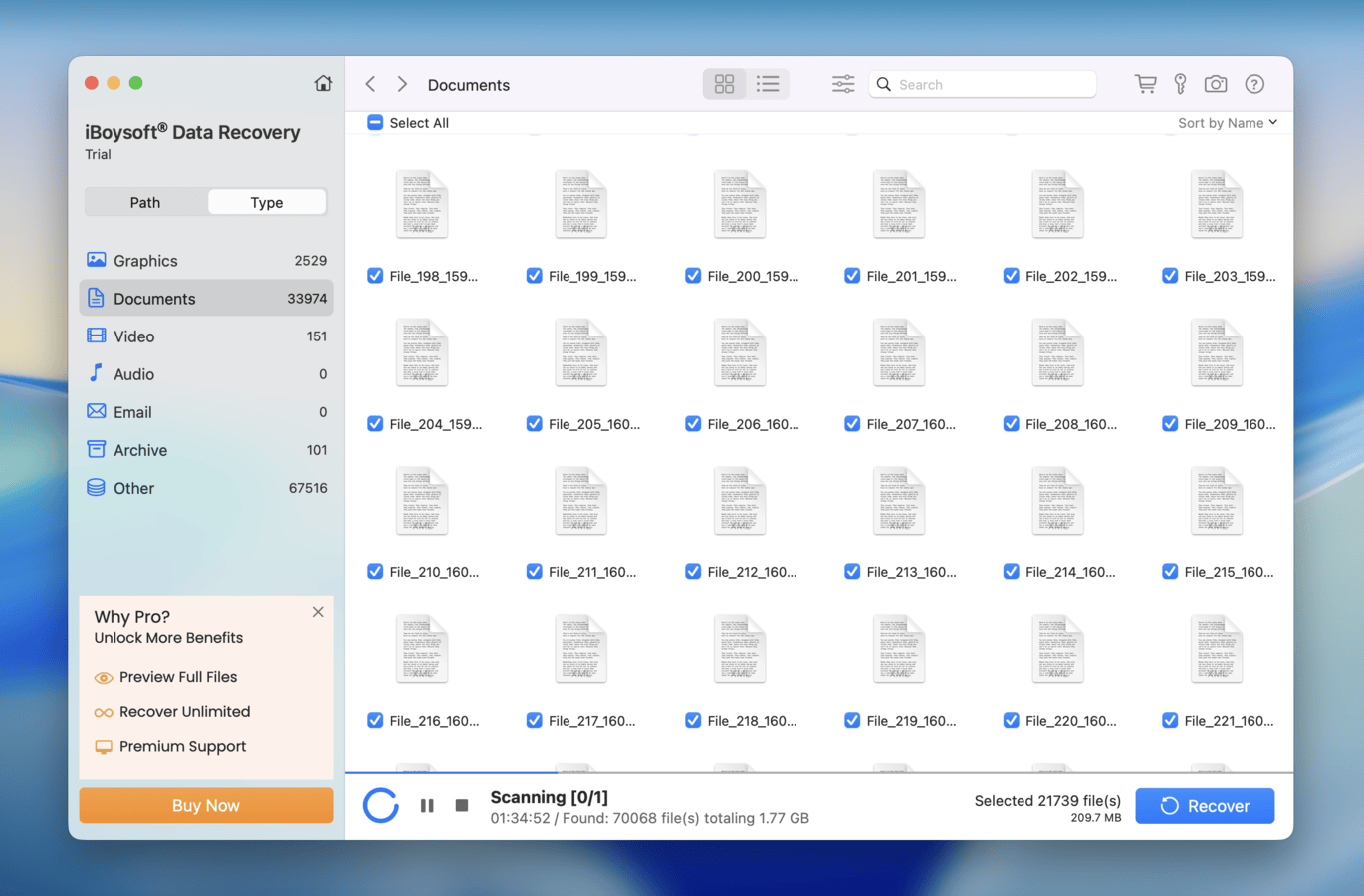
iBoysoft Data Recovery is a decent lightweight data recovery tool with glaring flaws but notable strengths. It has a generous free trial (1 GB data + free unlimited scan and preview) and scored relatively average when we tested it for recovering RAW photos, videos, and documents. It gets left behind in other lanes (such as user experience and features), but you get a lot of mileage out of the trial — this can help you easily determine whether or not a license is for you.
Free Version
The free version of iBoysoft Data Recovery for Mac lets you recover up to 1 GB of deleted data. You will need to upgrade to the paid version of the tool if you want to recover additional data.
- Free 1 GB data recovery
- Compatible with M1-M5 and T2 Macs
- Quick and Deep scans for optimal recovery results
- Free scan and preview of recoverable files
- Scan results can be saved and reloaded
- The license model is expensive
- Its preview tool supports a very limited number of file formats
- BitLocker recovery requires another (paid) license
- The app has had no major updates since 2023
Features
iBoysoft can recover lost files from corrupted or unreadable internal or external storage devices. The tool supports the recovery of files in over 1000 different formats covering all popular media file types. It offers users a simple, three-step recovery process that scans your storage media, previews recoverable data, and recovers them to a safe location.
Supported OS: All macOS versions, starting from Mac OS X 10.11
How We Tested Data Recovery Software for Mac
Every tool featured in this article underwent rigorous research and testing phases in a collaboration between our technical writing team and our tech team.
After downloading and installing the apps ourselves, we ran multiple simulations to test each software under different conditions and compared their results against what they claimed on their websites.
| Software Name | Free Trial Limits | Interface | File Preview | Latest Update |
| Disk Drill | Unlimited scan and preview only | Good | Yes | November 20, 2025 (Version 6.1.2111) |
| PhotoRec | The app is completely free | Bad | No | February 22, 2024 (Version 7.2) |
| UFS Explorer | Unlimited scan and preview, unlimited recovery for files <= 256 KB | Average | Limited | January 5, 2026 (Version 10.18) |
| Wondershare | Recover up to 500 MB of data | Average | Yes | September 24, 2025 (Version 10.11.1) |
| iBoysoft | Unlimited scan and preview, unlimited recovery up to 1 GB of data | Average | Yes | January 8, 2025 (Version 5.2.4) |
Free Methods to Recover Deleted Files From Mac
While data recovery apps are powerful and capable of solving many data loss problems, they don’t have to be your Plan A. In fact, there are some cases where you don’t need software — just the tools already available on your Mac!
There are several free tools already built into macOS that can help you recover your data, as long as certain conditions are met. Below, we’ll demonstrate how to use these tools and when they are most effective.
Method 1: Recover Deleted Files From Trash Folder
Whenever you delete a file, it initially goes to the Trash folder. It stays there until you delete it from within that folder or you manually empty your Trash. If you accidentally deleted your files, they’re likely to be found here.
To recover files from local Trash:
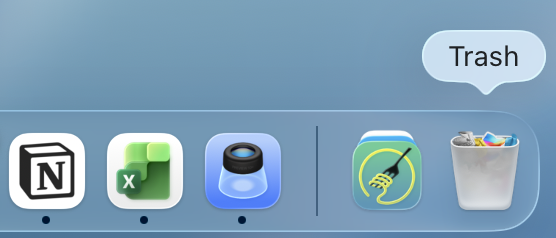
Step 1. Click the Trash icon on your dock or navigate to ~/.Trash using Finder Go (Finder > Go > Go to folder…)
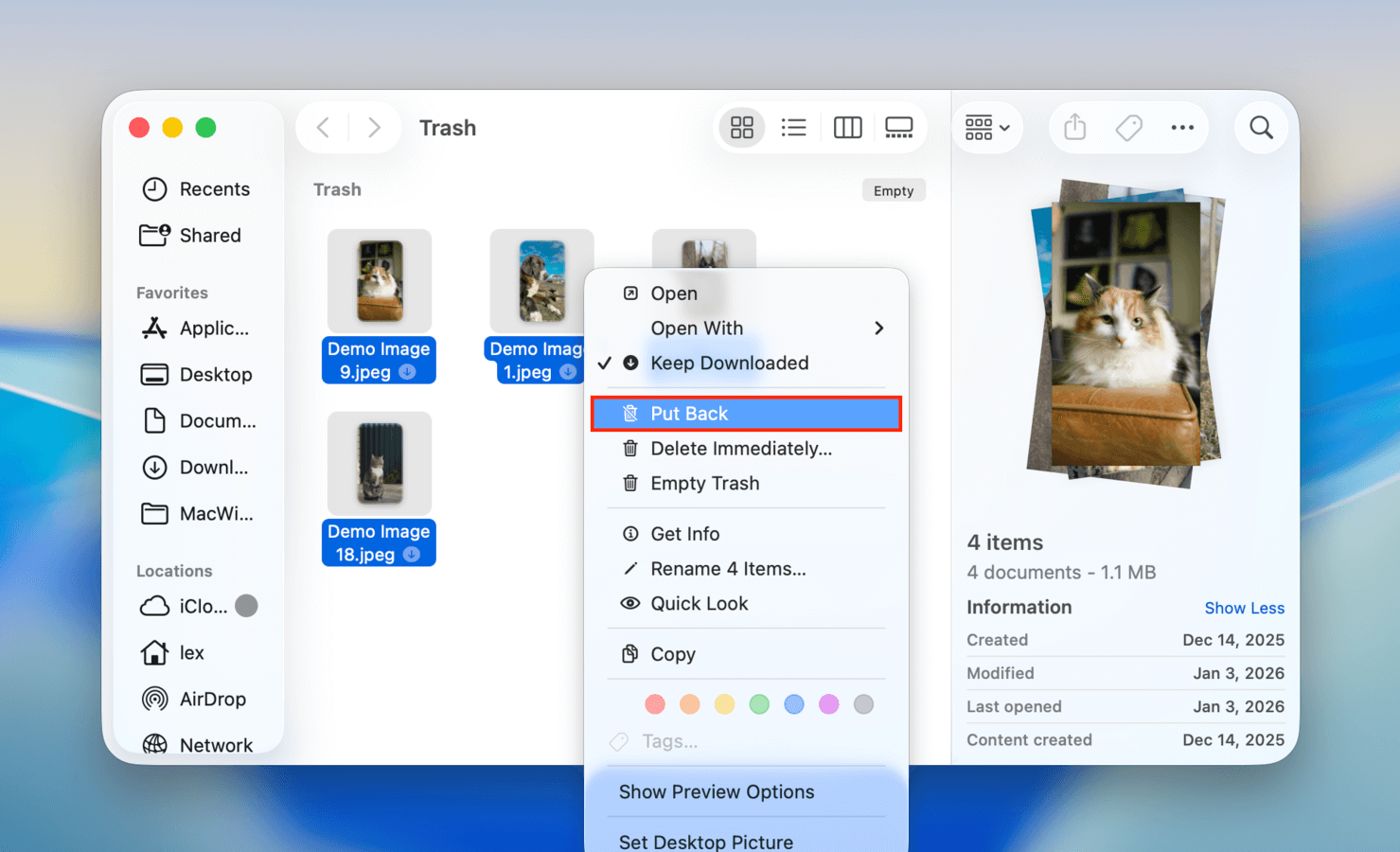
Step 2. Right-click the file you want to recover, then click “Put Back.”
Method 2: Restore Files Using Time Machine
Time Machine is Mac’s powerful backup tool that can track incremental changes to files and folders and restore any version that was recorded in the timeline. However, Time Machine requires the user to manually enable its features – so this section assumes you have a Time Machine backup available.
To restore Time Machine snapshots:
Step 1. If you have it, connect your Time Machine backup drive.
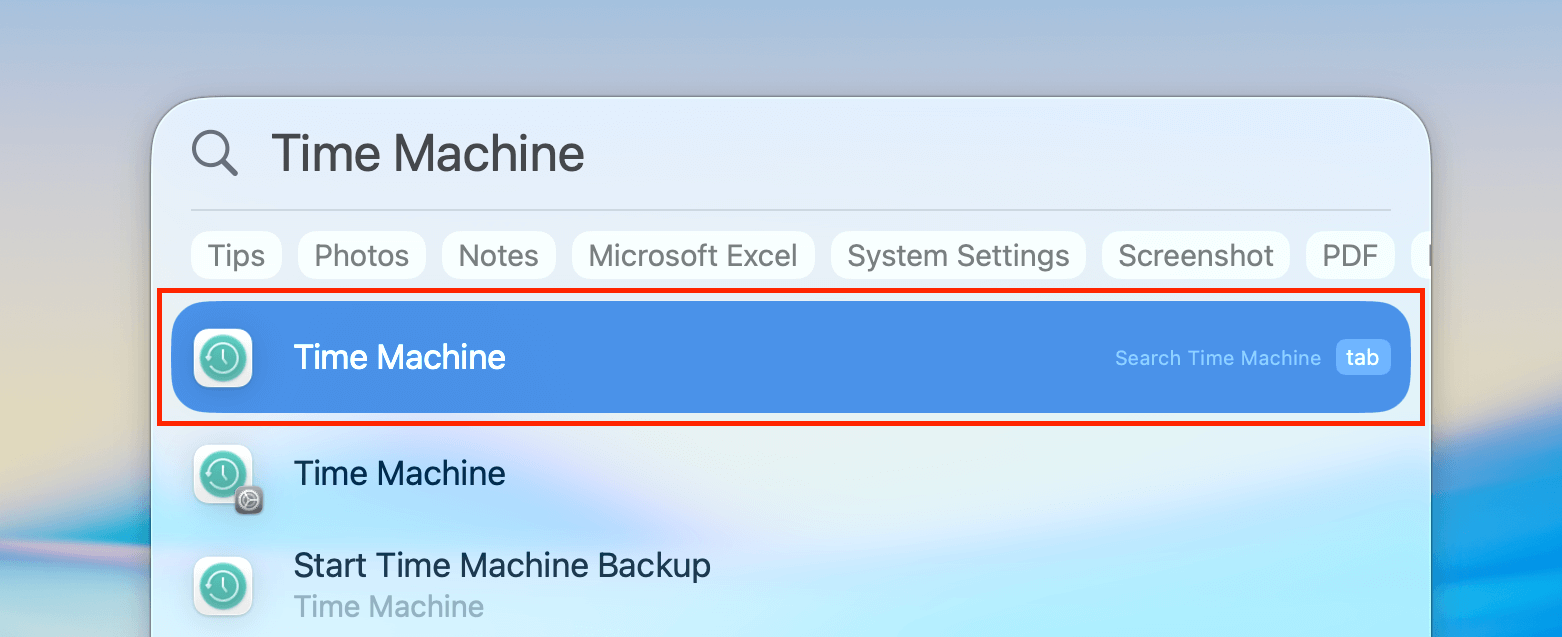
Step 2. On the menu bar, click the Time Machine button > Browse Time Machine backups… If the button isn’t there, you can simply open Time Machine via Spotlight (Command + Space).
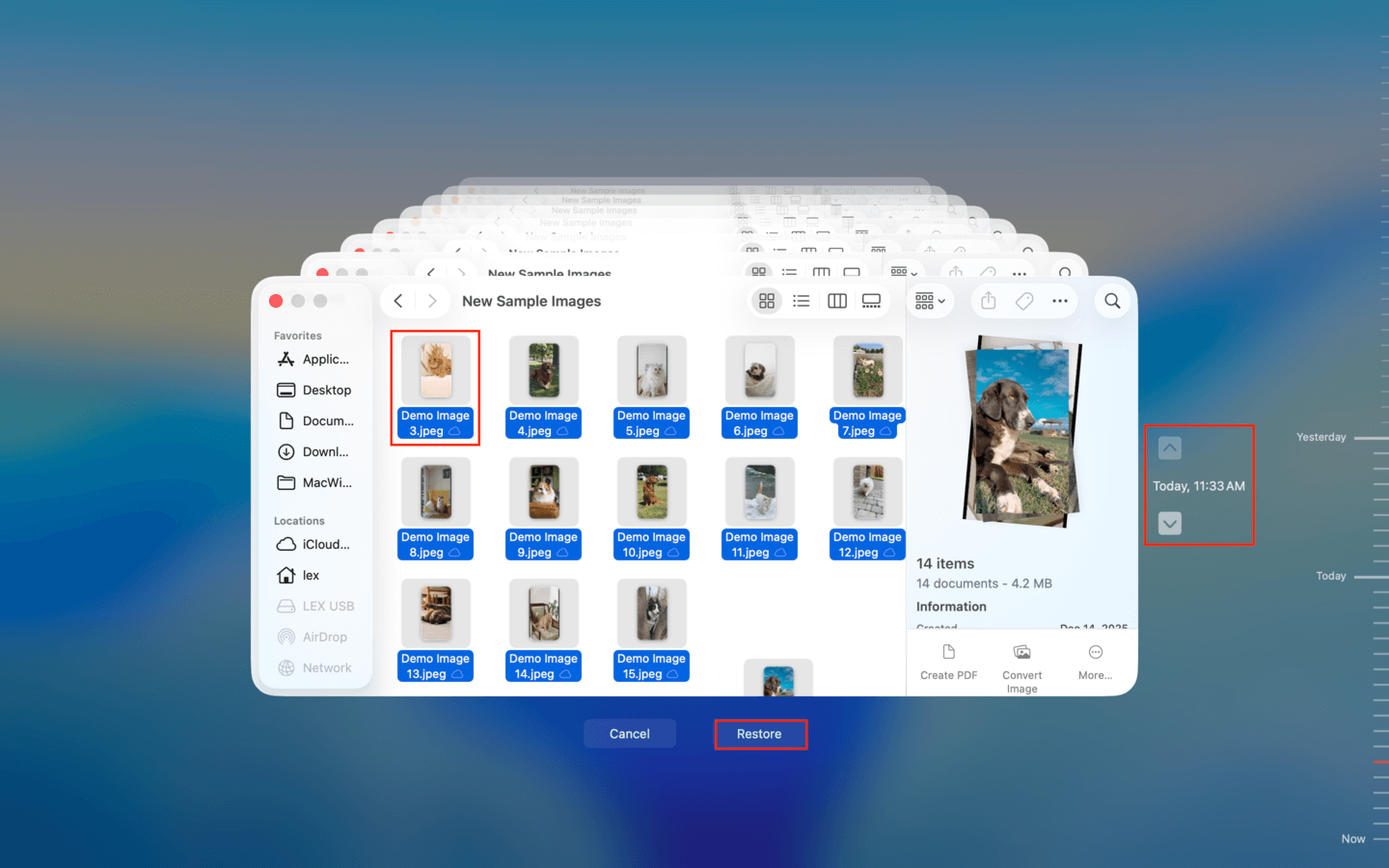
Step 3. In the Time Machine interface, navigate to the folder where your deleted files were originally stored. Then, use the arrow keys on the right until you find a snapshot that contains your files. Select them and click Restore.
Before You Go, Here’s Some Honest Advice
Data recovery technology has come very far, but you can never guarantee 100% recovery of your lost files, especially if overwriting may have occurred. Overwriting physically obliterates the 1’s and 0’s (that ultimately make up your file data) on your disk’s storage sectors. This becomes a bigger risk for internal SSDs, which usually have a feature called TRIM (basically, TRIM makes data unrecoverable faster due to its garbage collection system–which is part of why SSDs are much faster). Fortunately, this is rarely a problem on external SSDs.
So we strongly recommend setting up Time Machine ASAP if you haven’t already. In case something happens to your Time Machine drive, some data recovery apps can scan that too!
FAQ:
TestDisk is a completely free data recovery software solution for Mac but is only appropriate for recovering lost partitions. The freeware tool has a companion product called PhotoRec that can recover individual files.
The main issue with these freeware products is that they require users to interact with a command-line interface and have some knowledge about their computer’s internal storage system. Average users may find these solutions difficult to use and will obtain better recovery results using a paid data recovery application.
No, Recuva is designed solely for Windows computers. You can run it on a Mac only with the help of Windows virtual environment.