Is your iPhone’s storage space the same after deleting your photos? It’s possible that your photos’ data still resides somewhere on your device. Depending on where those photos originated from, there are different ways to get rid of them (which aren’t always that obvious).
So we created this in-depth guide on the different methods to help you empty deleted photos on your iPhone “the right way”, depending on their original source and how their data gets stored on your device.
Table of Contents
5 Ways to Empty Deleted Photos on Your iPhone
In this section, we’ll show you 5 different methods of clearing up deleted photos the right way and free up storage space on your iPhone. Since this guide covers different types of “ghost photo data” that may be present on your device, we recommend trying all methods listed (starting with the first one).
Method 1: Delete Photos Again from the Recently Deleted Folder
Whenever you delete a photo from your Library, it’s not erased immediately. Instead, it’s moved to the Recently Deleted folder, which is its own “Collection” in the Photos app. In the Recently Deleted folder, you can choose to either restore those photos to your Library or permanently delete them.
But as long as you haven’t taken action, your photos will continue to take up as much storage space as before. To actually free up storage space, you need to delete your photos again from the Recently Deleted folder.
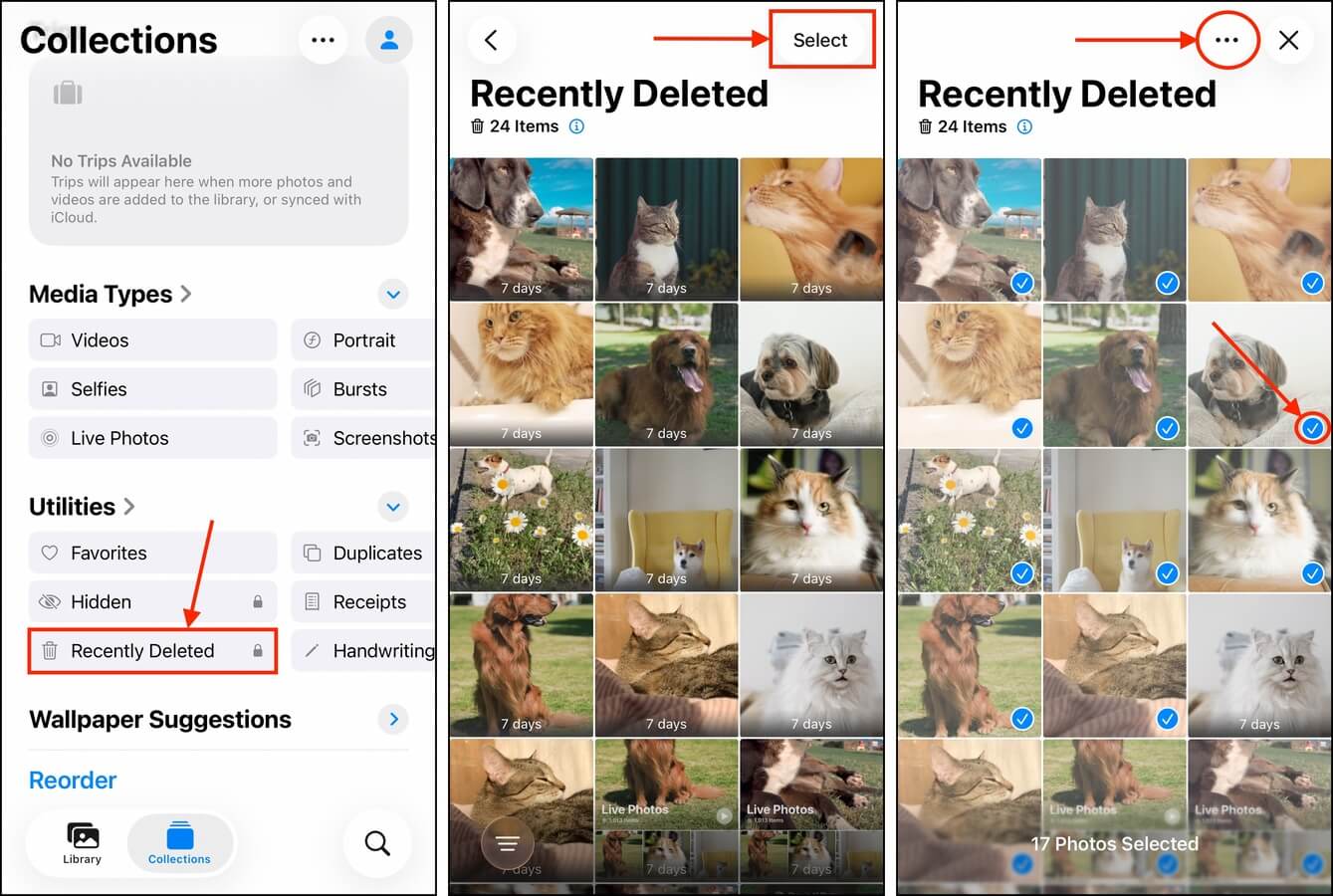
Here’s how to clear recently deleted photos on your iPhone:
Step 1. Open the Photos app.
Step 2. Navigate to the Collections menu and scroll all the way down to the Utilities section. Tap Recently Deleted.
Step 3. In the top right corner of the screen, tap Select.
Step 4. Tap the photos you want to delete. Then, tap the meatball menu in the top right corner of the screen.
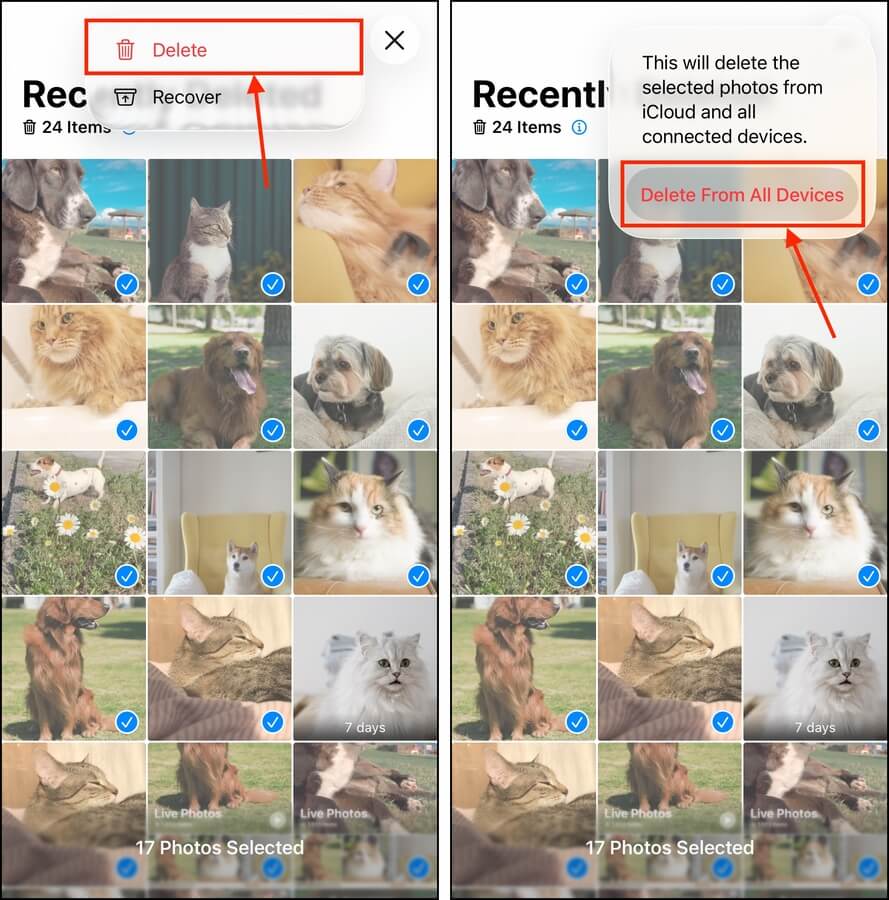
Step 5. In the context menu that appears, tap Delete.
Step 6. Finally, tap Delete From All Devices to confirm the action.
Method 2: Perform a Hard Restart of Your iPhone
In some cases, iOS gets delayed or prevented due to bugs, software issues, etc., from updating its storage calculation to reflect the changes. This means that, even if you know how to clear deleted photos on your iPhone (from your Library and the Recently Deleted folder), your storage space usage will remain the same.
Performing a “hard restart” of your iPhone means forcing your device to reboot at a hardware level, without going through the normal shutdown process. This forces iOS to start without any saved states and reindex your data, which should prompt a recalculation and reflect your actual storage space capacity.
Step 1. Press the Volume Up button (on the side of your device), then immediately release it.
Step 2. Press and hold the Volume Down button and the Side button at the same time.
Step 3. Once the Apple logo appears on your screen, release both buttons.
After your iPhone completely starts back up, give iOS a few minutes to recalculate its storage space. Then, check the iPhone Storage menu (in the Settings app) to see if anything changed.
Method 3: Delete Photo Attachments from Messages
Are you deleting photo attachments from your library that you previously downloaded from the Messages app? Even if you downloaded them to your library, iOS still keeps the copy in the Messages app itself.
So even if you delete the attachment from your library, the size footprint of the Messages app will remain the same. You can delete the attachment from the Messages app itself to shrink its app size and free up more storage space.
Step 1. Open the Messages app.
Step 2. Open the thread that contains the attachments you want to eliminate. Then, tap your contact at the top of the screen.
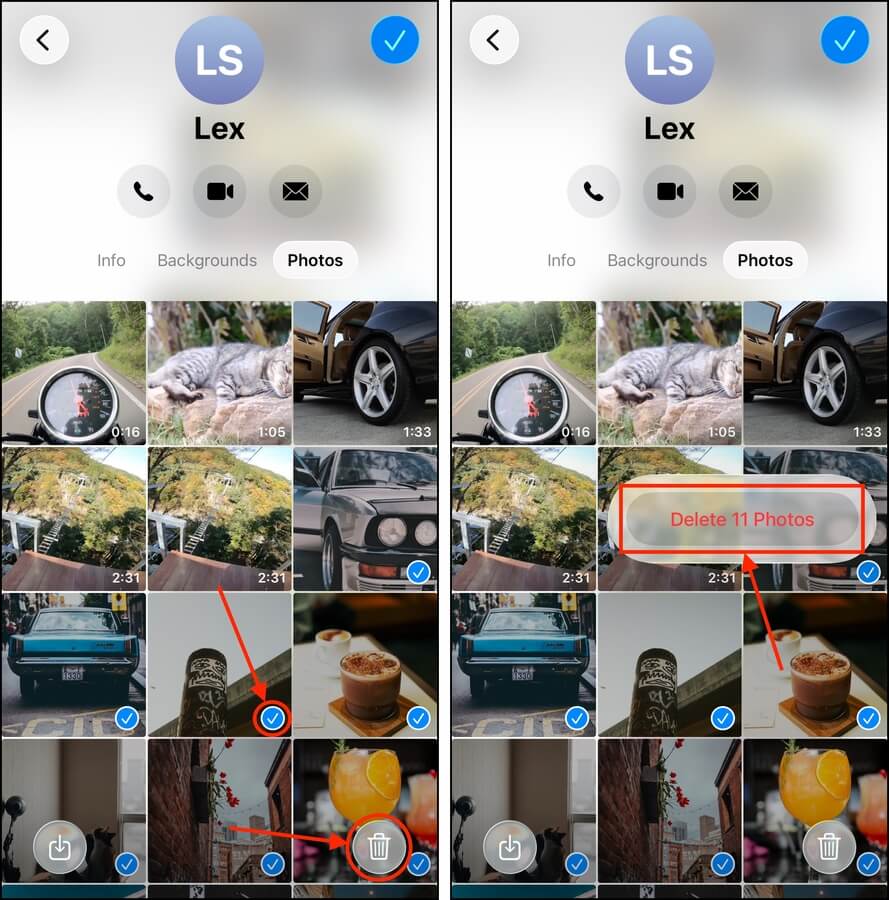
Step 3. In that contact’s page, tap the Photos button (beside the Info and Background buttons). Then, tap Edit in the top right corner of the screen.
Step 4. Tap Select Photos.
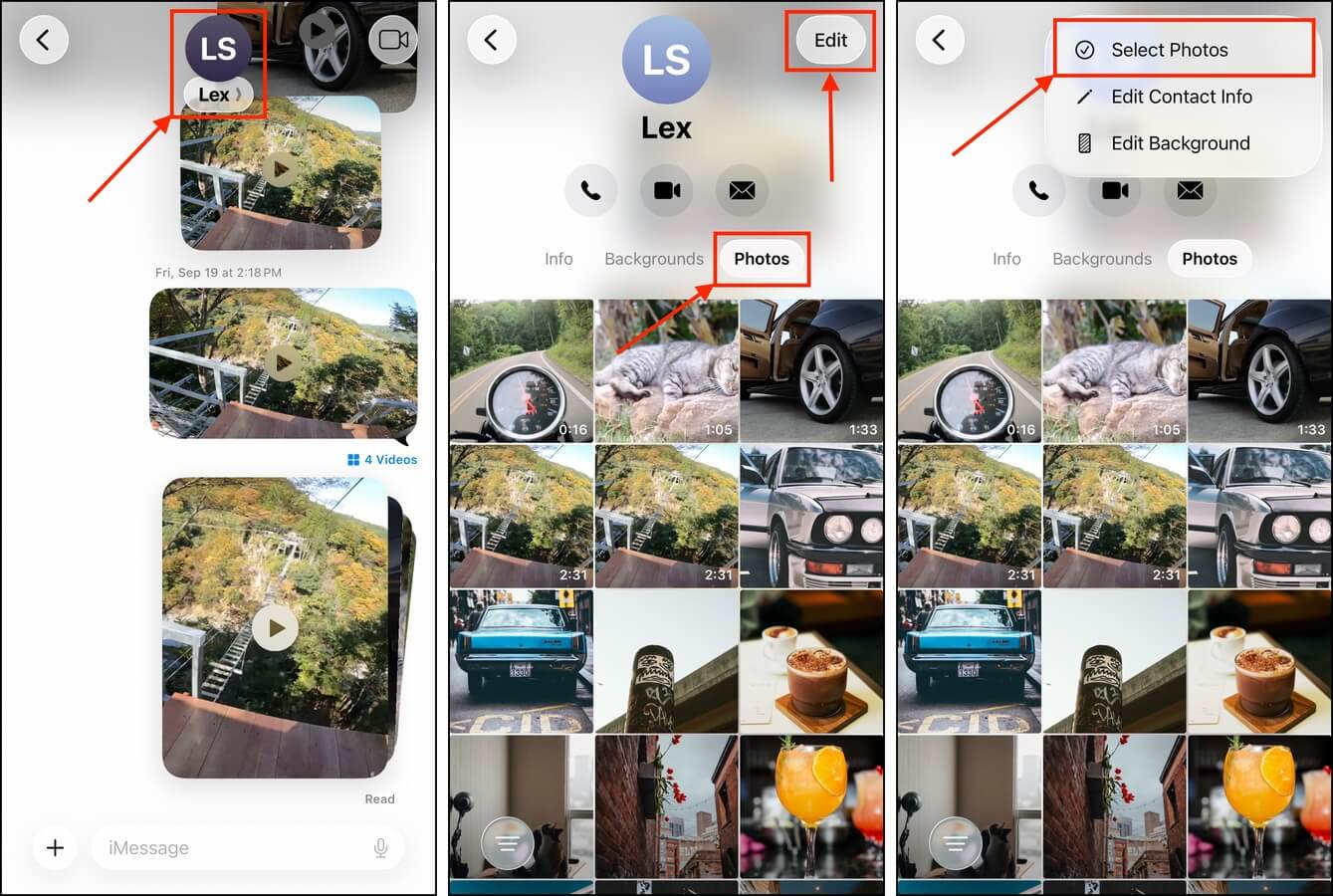
Step 5. Choose the photo attachments you want to delete. Then, tap the Trash button.
Step 6. Finally, tap Delete Video when prompted to confirm the action.
Method 4: Remove Photo Attachments from Social Apps
Many social messaging apps automatically download attachments (to their cache storage) in the background. This is so you don’t have to wait for them to load as you read your messages. Even if you downloaded these attachments to your library and delete them via the Photos app, it’s possible that the cached copies still remain.
Fortunately, most apps allow you to manage cache data directly to free up space. We’ll show you how Telegram does it, but you should find similar features in other social messaging apps.
Step 1. Open the Telegram app.
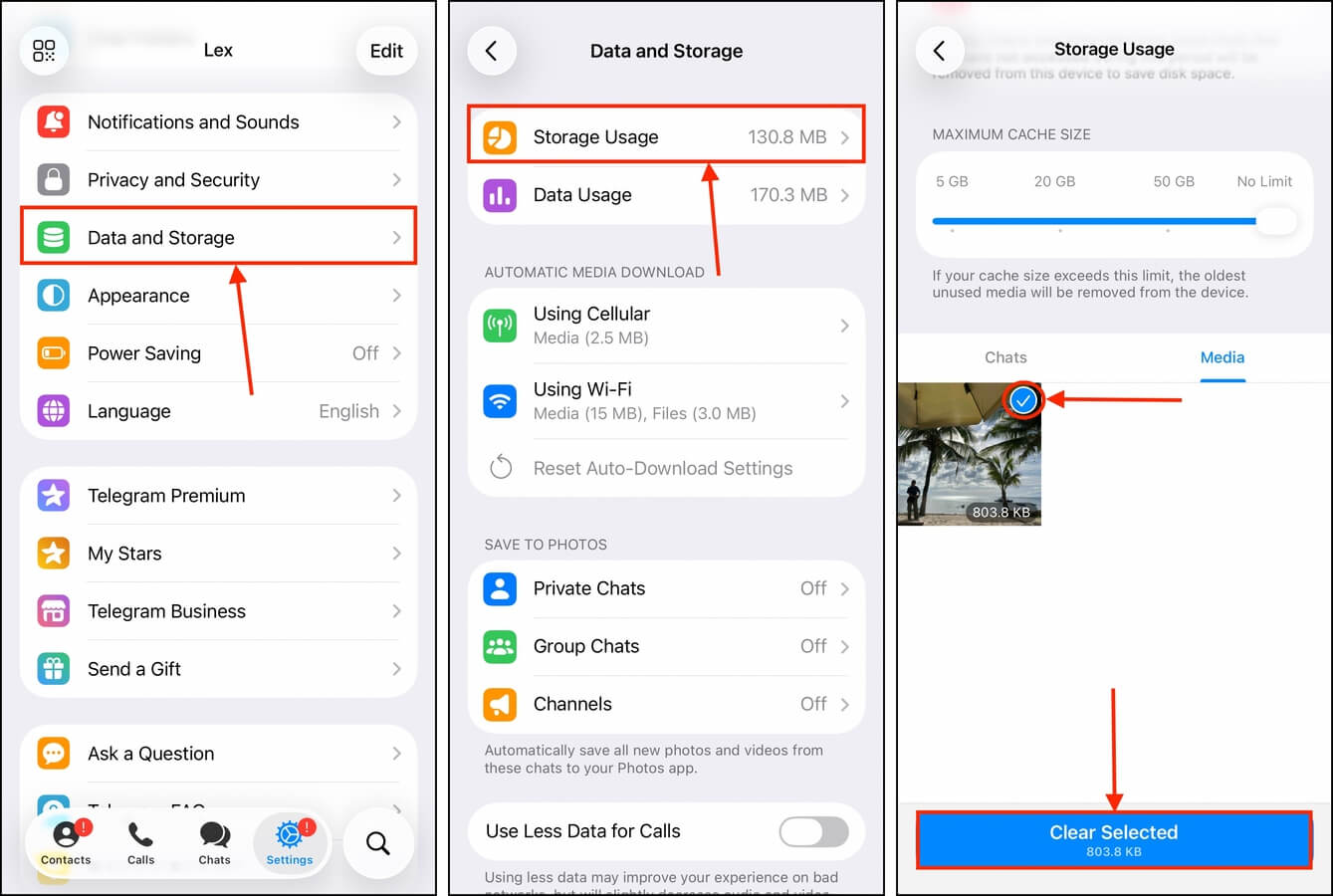
Step 2. In the toolbar, tap Settings. Then, scroll down and find the Data and Storage option and tap it.
Step 3. In the Data and Storage menu, tap Storage Usage.
Step 4. Scroll down until you get past all the cache options. There should be a list of photo and video attachments saved in the app, viewable by contact or as a gallery. Tap Media to view the gallery. Then, tap the photos you want to delete and tap Clear Selected.
Method 5: Force iOS to Clear Its Cache
Aside from attachments, deleted photos’ leftover data (like thumbnails, metadata, and indexing files) is often stored in the Others or System Data storage categories on your device. So, while deleting photos from your library will free up storage, you stand to gain even more space from a more comprehensive cleanup.
You can’t directly clean up that type of data on your iPhone, but you can prompt iOS to do it for you. The most effective way to do so is to take a long HDR video on your device, which makes iOS think that you need additional space to store it (even if you don’t end up saving the video). Here’s what you should do:
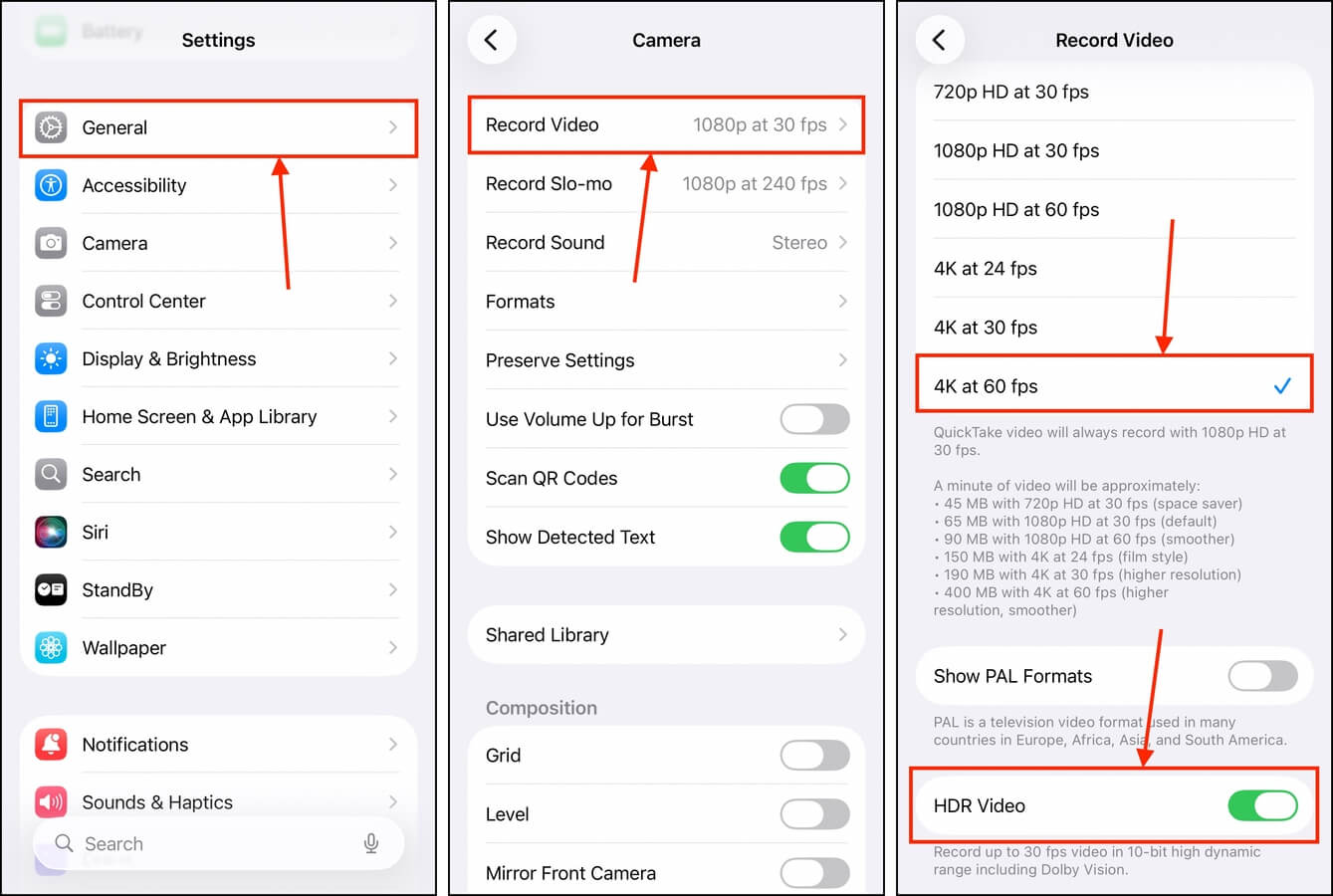
Step 1. Open the Settings app.
Step 2. Scroll down until you see the Camera option, then tap it.
Step 3. In the Camera menu, tap Record Video.
Step 4. Select the highest quality setting available on your device. If ProRes and/or HDR are available, use those too.
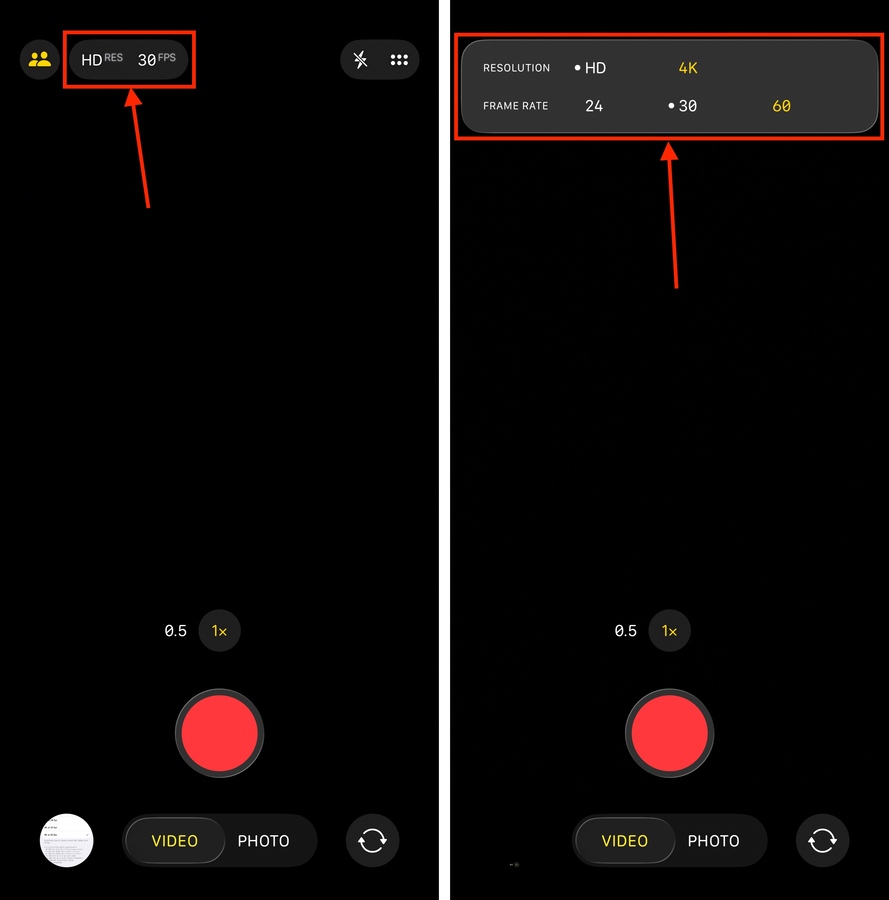
Step 5. Open your Camera app and make sure to set up HDR or ProRes. Then, start shooting a video. If you leave it alone for long enough, you should get a notification from iOS telling you that it’s freeing up space in the background. It will eventually ask you if you want iOS to continue doing so–allow it to start purging the cache files on your device.
After the cleanup process is complete, we recommend rebooting your iPhone. This will make iOS recalculate your new storage capacity faster than if you waited for it to happen automatically.
Want to Clean Up More “Leftover” Data?
Aside from “ghost data” from deleted photos, the Others or System Data category of your iPhone’s storage is filled with a lot of other useless and obsolete data. Some users report that their System Data takes up to tens of gigabytes of storage space!
If you, too, have bloated Other or System Data storage, we wrote guides specifically to help you with that. For users with iOS 14 and earlier, see our guide on clearing Other data without messing up your device. For users with iOS 15 and later, see our guide on clearing System Data instead.