Looking for iPad data recovery software? There are SO many options online that if you try searching for one on your own, you’ll probably get overwhelmed trying to distinguish what sets each of them apart (especially since their features sound at least roughly similar).
Our goal with this article is to take the guesswork out of your way by compiling our top iPad recovery software and breaking down what makes them worthy of a download. We cover their features, user experience, strengths, weaknesses, pricing, and free trial information, as well as show you (briefly) what the data recovery process looks like.
Table of Contents
When Can iPad Data Recovery Software Help?
To give you a better perspective, it’s important to first explore some possible causes for data loss on your iPad. Losing data ranges from a variety of occurrences with the most common reasons being unintentional. The following are some of the common data loss scenarios for iPad users:
- ⚠️ Accidental Deletion. Deleting a file erroneously is not an uncommon practice. For many users, the possibility of losing data through accidental deletion doesn’t come as a surprise. Attempting to delete some photos, videos, documents etc. could result in mistakenly including items that you do not intend to get rid of. When seeking to delete items off your iPad, always double-check to confirm which items you truly mean to delete.
- ⬆️ Software Upgrade. While it’s relatively rare to encounter data loss after upgrading your iPad device to the latest iOS version, some users have experienced this. It’s good practice to try and backup all your data, or at least the relevant ones using iTunes, iCloud or any other preferred data backup tool to prevent losing your vital data.
- 🔨 Physical Damage. As long as your iPad turns on and you can still unlock it, iPad recovery software may still be able to extract data from it. In other cases, you’ll need to send your device to a professional data recovery service instead (which is also generally preferable to avoid making the damage worse).
- ❌ System crash. In case your iPad crashes or shuts down in the middle of what you’re doing, it’s possible for recovery software to restore your lost progress. However, this depends on how the app you were using handles cache and storage management, so your mileage may vary.
- 🔑 Forgotten Credentials. Many users in a bid to protect personal information, have enabled system locks or passwords. Due to the stress on our memories sometimes, we can suddenly forget our passwords synced to our device. This is especially common for people who use multiple passwords across different devices. For sophisticated devices like iPads, failure to remember your password will lock you out of your device forever, and could potentially erase all your data.
8 Best iPad Data Recovery Software
Even with the most advanced data protection measures, certain data loss scenarios could leave you in a state of shock whilst highlighting loopholes you failed to take notice of. After such an experience, the ideal solution would be to depend on a data recovery software to help you recover deleted files on your iPad.
Despite a plethora of data recovery software, you might come across, the following data recovery tools, each containing different recovery scenarios will help you recover deleted files with ease.
1. Disk Drill iOS Recovery
🎁 Apply a coupon “DDIPAD” during the checkout process, and you’ll get Disk Drill PRO Lifetime (Mac edition) with a 35% discount.
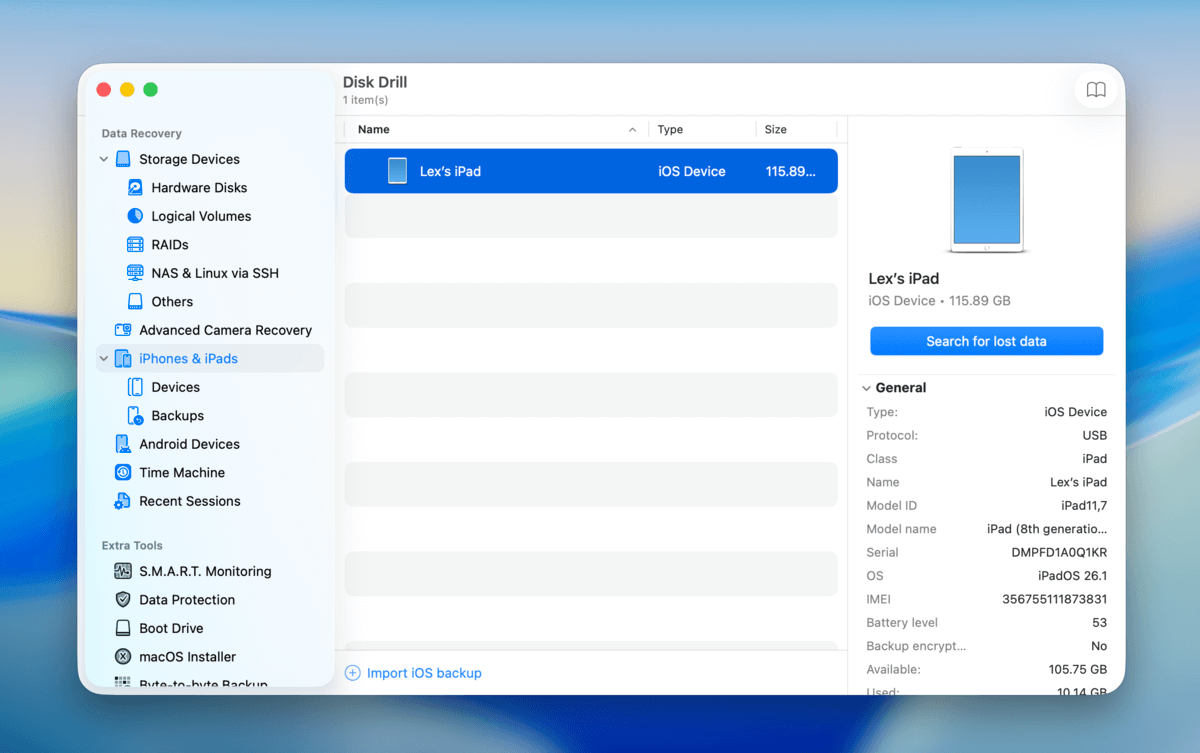
Disk Drill is a very popular data recovery app that can restore files not only from iOS devices, but also from Android, Mac, and Windows machines (as well as almost all external storage devices). It can recover data from your iPad directly or retrieve files from iTunes and iCloud backups to avoid having to roll back the device or recover all the files at once.
Users are given many quality-of-life features that make recovery more efficient, such as a sorting tool and categorizing tool, a preview tool (that can even play videos), and reliable session management. Disk Drill also recognizes a vast amount of file signatures (more than most of its competitors), so it should support almost every iOS file you need to recover.
Aside from its above-average performance, the app also provides a great user experience. The interface is visually pleasing and designed to allow users of any level to start restoring data immediately.
Disk Drill is also one of the first apps to support the latest iOS and iPad models, thanks to its constant updates.
Overall, its performance, user experience, and multi-platform recovery features make Disk Drill our #1 choice – especially considering its value for money.
Pricing:
You can download Disk Drill for free to scan your iPad and verify chances of successfull recovery. The Disk Drill PRO version can be purchased at $89 and the Enterprise for $499.
- Fast, secure & accurate.
- Ability to preview scanned files before choosing to recover.
- User-friendly interface.
- Supports multiple data types including call logs, messages, videos, photos, notes, emails and more.
- Lifetime license.
- Supports iPadOS versions 5 to 26
- Users must upgrade to PRO to be able to complete data recovery.
- Direct recovery to the iPad is not possible. Instead, users are required to choose an alternative recovery location.
- iPad data recovery module works starting with Mac OS 10.8.5.
2. FonePaw
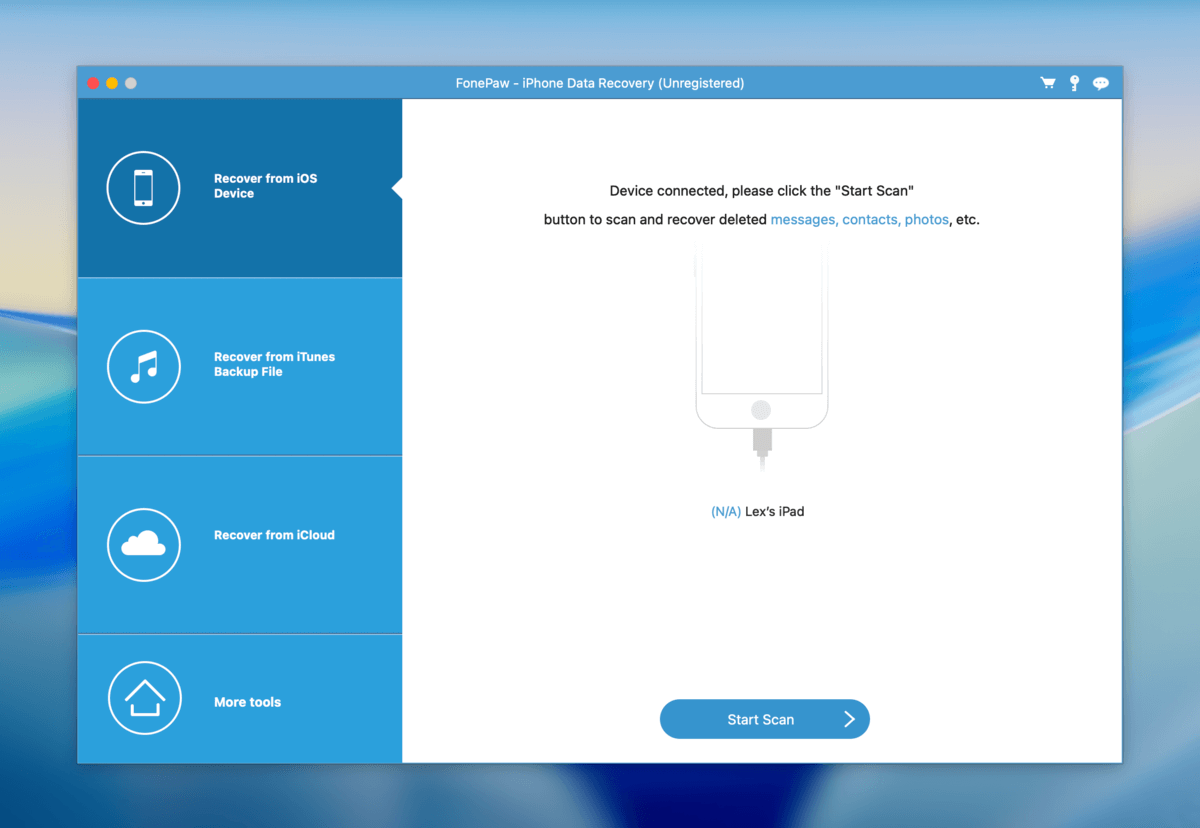
FonePaw is another well-known data recovery app but it’s specifically for iOS. It can directly scan your iPad or restore files from iTunes or iCloud backups. It recognizes over 30 file types, including photos, videos, messages, Safari bookmarks, calendar entries, as well as messages and attachments from messenger apps.
While its recovery rate is slightly lower than some of its competitors (especially in the top 5), it’s dependable for common data types like MOV, HEIF, and JPEG. And though a bit cluttered, FonePaw’s interface is easy on the eyes and approachable for users of any level.
Like Disk Drill, FonePaw provides filtering and search tools so you can easily review recovered files. However, we feel the app is a bit expensive considering what it offers compared to other apps on this list.
Overall, FonePaw is a somewhat pricey but reliable iPad recovery app with good performance and decent user experience.
Pricing:
For Windows users, a monthly subscription costs $49.95, an annual subscription costs $55.97, and a lifetime subscription costs $66.47
For Mac users, a monthly subscription costs $59.96, an annual subscription costs $66.47, and a lifetime subscription costs $69.97.
- Available on both Windows and Mac devices.
- Multiple file types supported.
- Preview files before recovery.
- Recover files directly and from iTunes/iCloud backups.
- Only supports up to iPadOS 18, but it can still scan devices running iPadOS 26.
- The app has a very outdated interface, especially compared to other apps on this list.
3. EaseUS MobiSaver
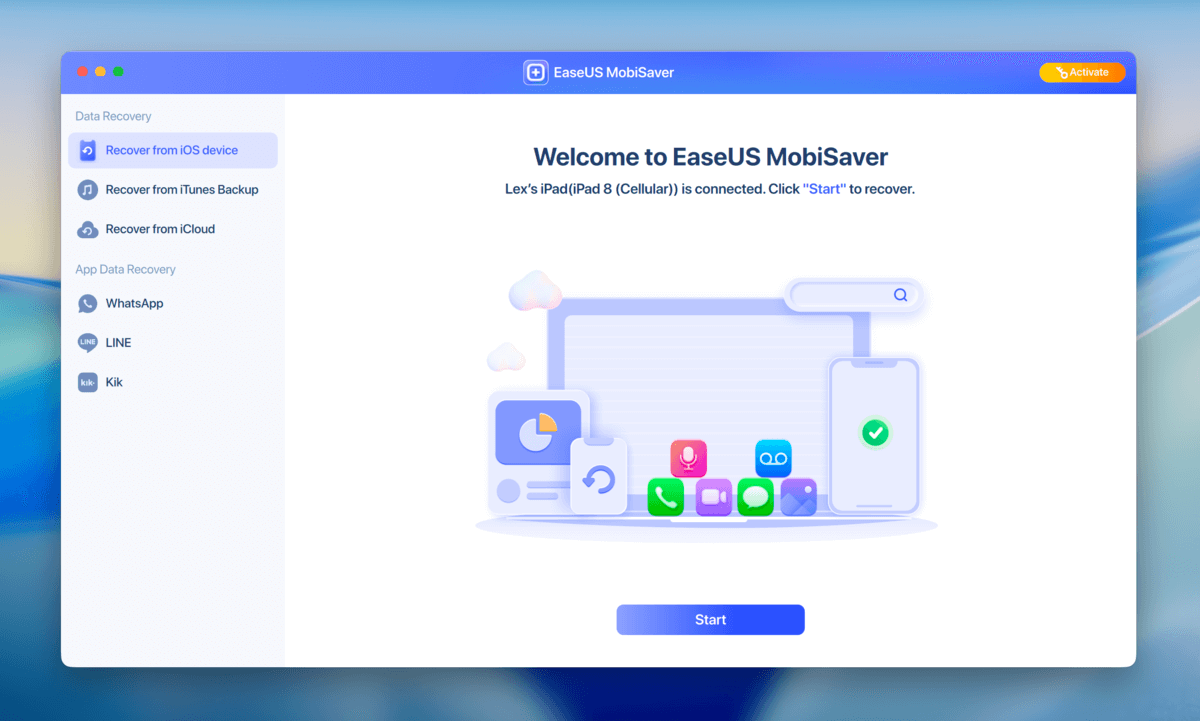
EaseUS MobiSaver is an iOS data recovery app from one of the longest-standing developers in the recovery space. Like other apps on this list, it can restore common iOS data types – like messages, photos, voice memos, etc. – directly from your iPad, from an iCloud backup, or from an iTunes backup. While its scan takes a bit longer than other apps on this list, it recovered most of our data successfully (which is what really matters).
EaseUS apps are well-known for being very beginner-friendly, and MobiSaver is no exception. The app is straightforward and makes it almost impossible to get lost along the way. The standard utilities are present, such as data filtering, search, and preview. Thumbnail view makes it easy to quickly browse photos and videos.
And while there are some apps that can offer more value for money, EaseUS MobiSaver’s basic pricing is more affordable outright. Its free trial can also recover SOME files instead of only being able to preview anything.
Pricing:
EaseUS MobiSaver can be downloaded for free but to actually recover files you need to pay extra to secure the professional version for $59.95 and $79.95 on the Windows and Mac platforms respectively.
- Supports multiple-file recovery.
- Supports both new and older versions of Windows.
- Recover data directly and from iTunes/iCloud backups.
- Simple user interface.
- Extremely limited free recovery.
- Limited tech support.
4. Stellar Data Recovery
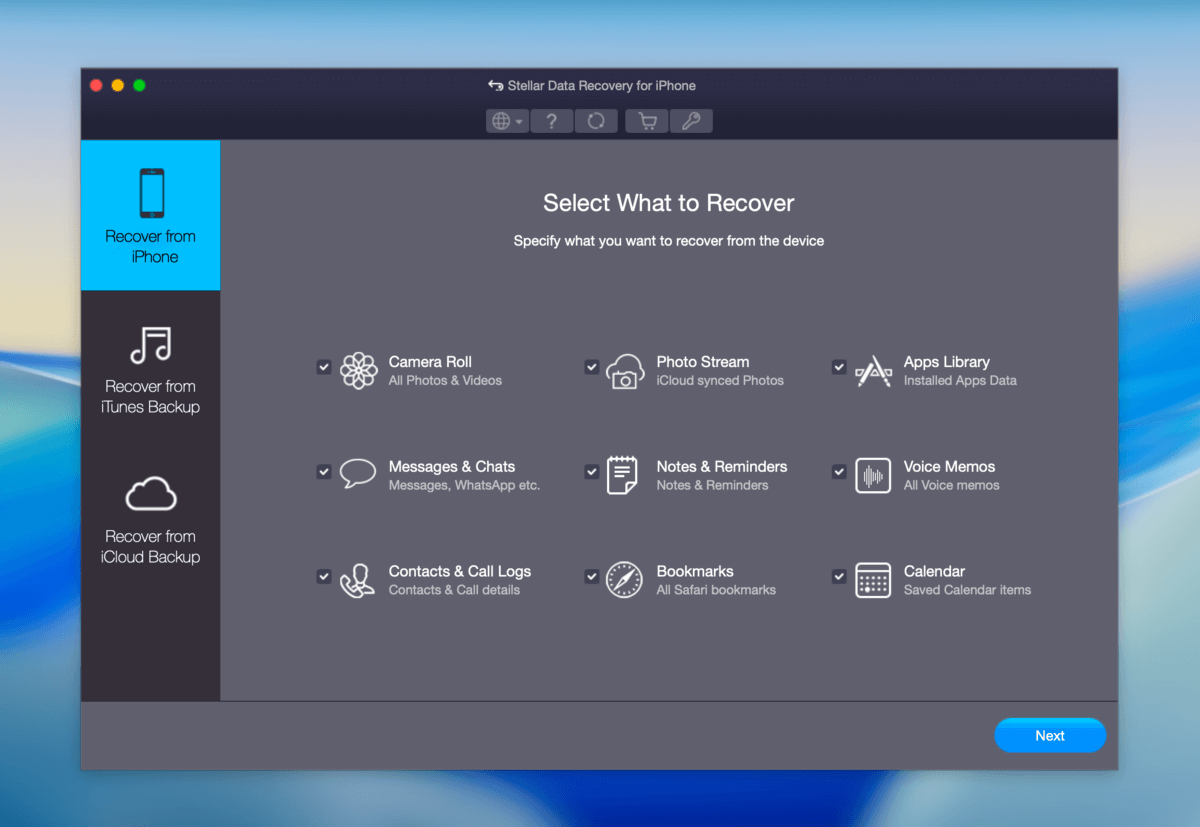
Despite its name, Stellar Data Recovery for iPhone can restore data from iPads and other iOS devices. It has the expected features of our top 5 apps; it can restore data from your iPad directly or from an iTunes or iCloud backup. It provides a search tool and automatically categorizes your data in the sidebar.
You can also scan specific data types only, allowing you to restore the files you need faster. And while its GUI is pretty average, it’s clean and easy to use for users at any level.
Stellar Data Recovery’s biggest advantages are its extra features and affordability. The Toolkit version of this app provides an iOS repair tool (which can fix crashes, getting stuck in the Apple logo, etc.) and an Apple ID remover in case you forgot your login details. Even with the Toolkit version, the app is cheaper outright than other entries in our top 5. It is cheaper outright than other entries in our top 5.
Stellar Data Recovery’s main disadvantage lies in performance. Its scanning speed is pretty slow, and its recovery rate is a bit lower than other apps in the top 5. We also encountered program freezes multiple times during testing, which we found disappointing for a paid app. However, it’s a great choice for users on a budget who also need a repair tool.
Pricing:
Just like many other data recovery tools, data recovery is not achievable using the free version.
The most basic package which is the standard version can be purchased for $39.99 whereas the toolkit and toolkit plus packages are available for purchase at $49.99 and $149.99 respectively.
- The user interface is clean and fresh.
- Multiple files and devices supported.
- Flexible and easy to use.
- Selective scan option.
- Available for Windows and Mac users.
- Supports iCloud and iTunes recovery.
- Data recovery is only possible using any of the paid versions.
- Lifetime upgrade non-existent.
- The app sometimes freezes mid-operation.
5. Dr.Fone
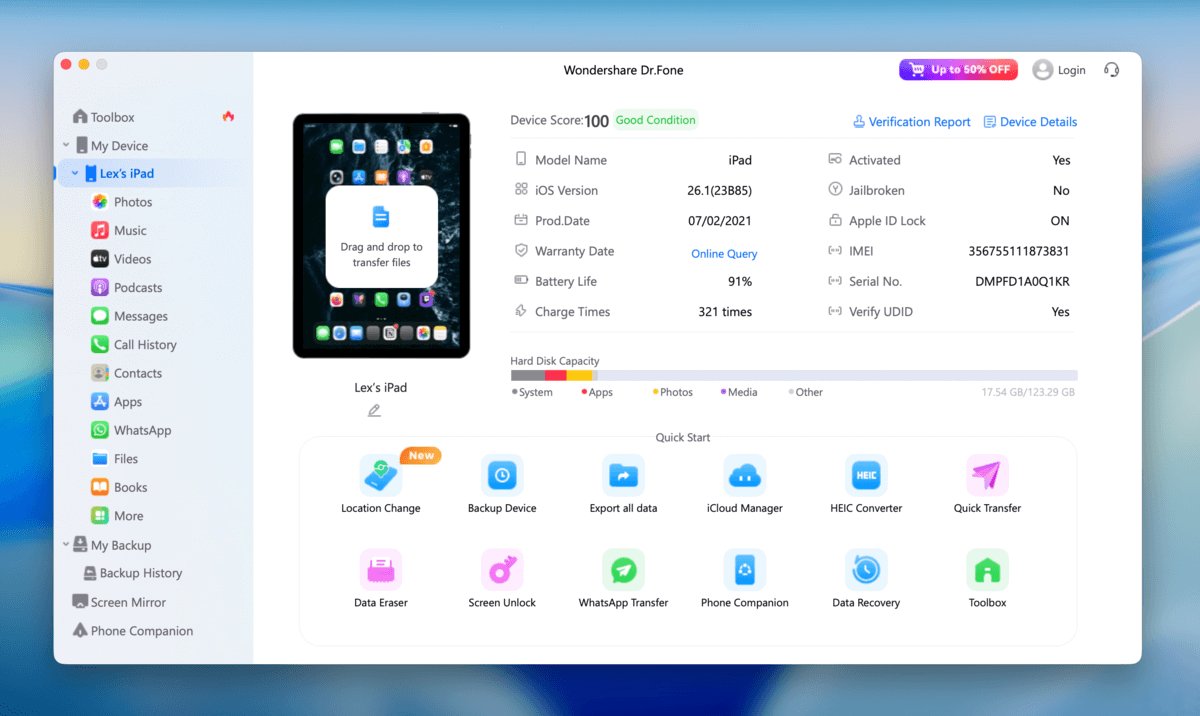
Dr.Fone for iOS is another known entry of many iOS recovery top 10 lists. From popular company Wondershare, Dr.Fone is a decent data recovery solution with impressively high-value optional features.
The standalone data recovery app has one of the nicer interfaces we’ve seen and it’s designed to be easily used by beginners from installation to starting the scan. Users easily sort, search, and filter found files for more efficiency. The recovery process itself does take a lot longer than many of the other apps.
Restoring everything – especially long videos – can be tedious. It also has a pretty good recovery rate, but not the best. Dr.Fone really shines when you purchase the full toolkit, which provides useful utilities like screen unlock and system repair.
Overall, it’s a good choice for users who want an all-in-one iOS repair and recovery tool to fix recurring issues that may be causing data loss in the first place.
Pricing:
Dr.Fone offers a yearly subscription for $59.95 and a lifetime subscription for $69.95.
- Supports recovery for multiple file types.
- Easy to use.
- Three recovery modes including iPad device, iTunes & iCloud Backup.
- No free data recovery.
- Not all the features marketed are available.
- Device licensing is limited.
- Lags very often.
- Technical support is dreadful.
6. Tenorshare UltData
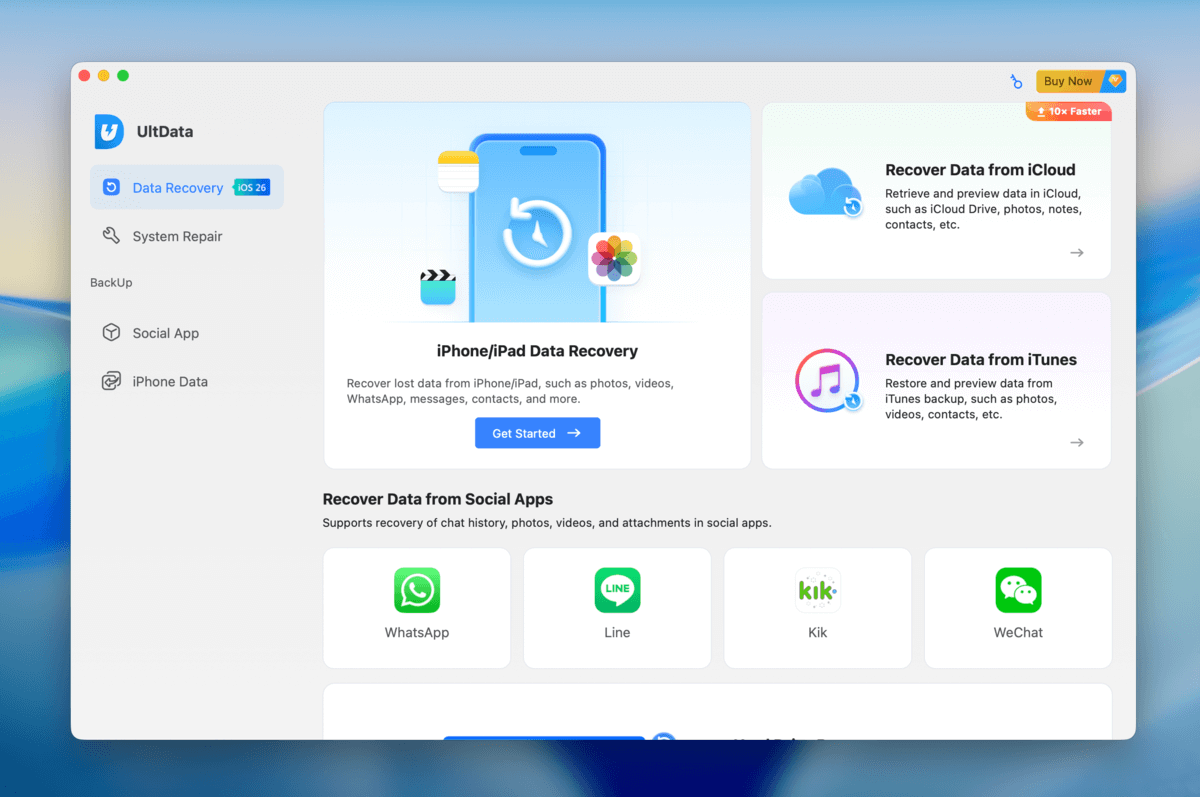
Tenorshare UltData for iOS is an older data recovery app known for having multiple features in one tool. Its user interface isn’t special in any way, but it’s simple and usable.
Tenorshare UltData’s recovery performance is passable but it lacks the quality-of-life features present in the earlier entries. Its scanning speed is slow and the app itself feels somewhat unoptimized. It’s also rather expensive for what it offers.
The app earns its spot thanks to its extra features; namely, it can help you get unstuck from the Recovery Mode loop and repair your iPad’s operating system. It also provides a separate scanning menu for restoring messenger data (e.g. LINE, Kik, etc.).
Pricing:
Users who prefer just a monthly or annual license can purchase each for $49.95 (Annual price discounted from $166.50). The premium lifetime license is being offered for $65.95 so depending on which value you desire the most, we recommend carefully selecting the package that will offer the best outcomes for you.
- Multiple devices supported.
- iCloud and iTunes backup recovery.
- Preview files before recovery.
- Multiple file types supported.
- Supports data recovery from a wide variety of social apps, including WhatsApp, Instagram, Kik, LINE, Messenger, WeChat, and KakaoTalk.
- No free data recovery.
- Money-back guarantee is a hoax.
- Poor technical support.
- Average performance.
7. Syncios iOS Data Recovery
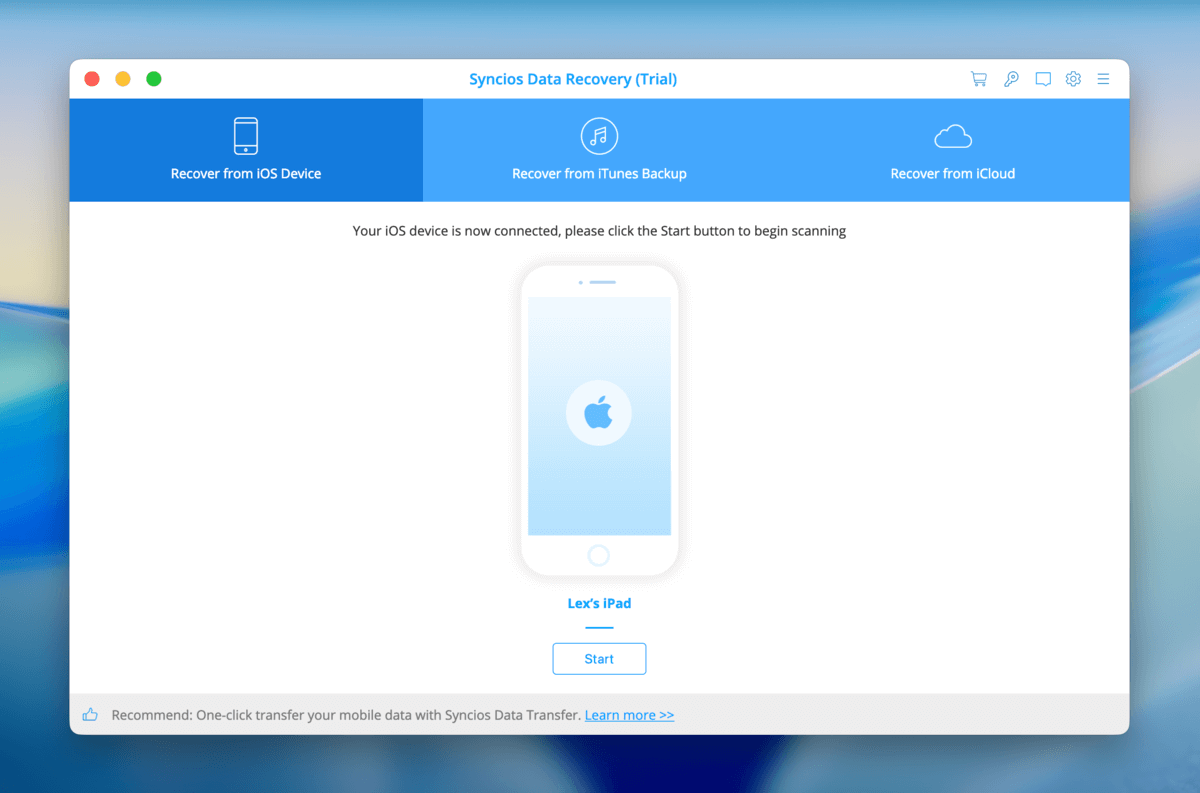
Syncios Data Recovery is a minimalistic-looking data recovery app that can restore standard iOS data types (such as messages, photos, and videos) from an iTunes backup, an iCloud backup, or directly from your iPad.
It was recently updated to support up to iPadOS 26 and had a significant boost in performance, which removes a lot of its major weaknesses. However, user experience and overall app design are still pretty average (but at least it performs just fine now). And while it has one of the cleaner interfaces we’ve seen, it lacks utilities like session management and tree view.
That said, we were impressed that the app is capable of restoring data directly to your iPad. Its discounted price also makes it a good deal outright.
Pricing:
Syncios data recovery for iPad is available for free download. Whether you are a Mac or Windows user, you can download the data recovery software for free. However you’ll have to pay $39.95 for a 1-Year license on both Windows or Mac to be able to recover data, Lifetime License is available for $49.95 and unlimited Busines License will cost you $299 a Year.
- All iPad models supported.
- Data recovery for iTunes.
- Easy to use.
- Restore SMS, contacts, and more directly to your iPad
- Data recovery is slower with this app compared to other apps
- The app’s design is clean, but not as good-looking as other apps’ designs
- The current subscription options are actually affordable, but we still expect a more polished experience for paid apps
8. Fonelab
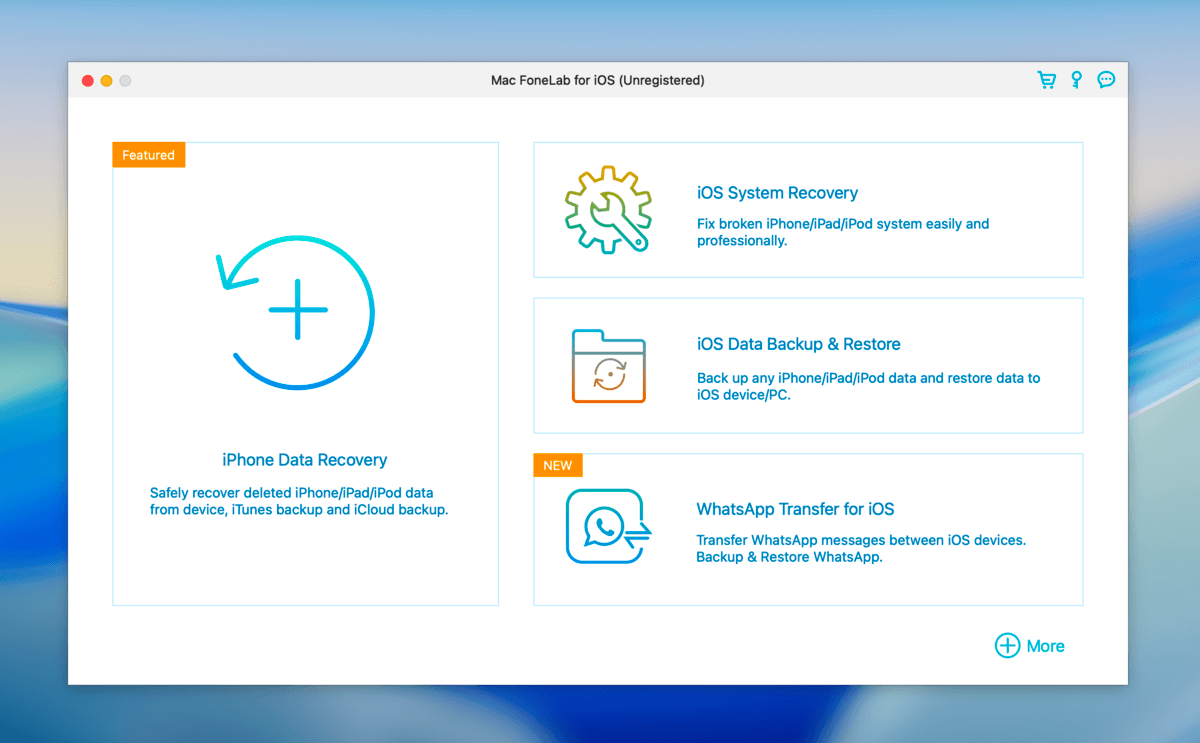
FoneLab iPhone Data Recovery is an iOS data recovery app that also works for iPads, despite its name. It supports the recovery of the core iOS data types, but it can also restore data from third-party messenger apps (e.g. QQ, WeChat, etc.) separately.
Like the other entries, FoneLab iPhone Data Recovery can restore files directly from your iPad or from a backup. In terms of recovery performance, the app works. It also provides additional tools like iOS system recovery, as well as the less common backup and restore tool.
Unfortunately, its user experience is long overdue for a redesign; we couldn’t find its change log online, but its interface looks severely outdated. It also seems to repeatedly ask to be unlocked, making the recovery process more tedious than it needs to be.
We think the app should be cheaper and should at least offer limited free recovery as a trial especially if you’re trying to restore less common data types. But it provides a quick fix tool for free in case of any minor iOS issues, which we appreciate.
Pricing:
Fonelab is available for free download except that you can’t do more than preview files. Getting the most features out of Fonelab requires an upgrade to the paid version which can be purchased for a limited offer of $55.96 (Single-user) & $132 (multi-user) on both Windows and Mac platforms.
- Supports the latest version of iOS.
- Supports all iPad models.
- Easy to use.
- Data recovery from third-party apps.
- Preview files before recovery.
- Data recovery requires a paid version.
- Hardware compatibility issues contrary to what has been advertised.
How to Recover Deleted Files on iPad Using Disk Drill
To give you as much value here as possible, we decided to add a very short step-by-step guide on using an iPad data recovery app to restore deleted files. We’re using Disk Drill for this demonstration because it’s first on the list, and its interface is really beginner-friendly (which also makes it demo-friendly).
However, the process is very similar across most iPad recovery apps–most of the differences you’ll encounter are superficial, like panel names, button labels, etc. You can apply this guide to any of the entries in this list.
Step 1. On your Mac, download and install Disk Drill. If it’s your first time using it, you’ll be prompted to grant the necessary permissions for it to run on your Mac. Don’t worry, it’s safe!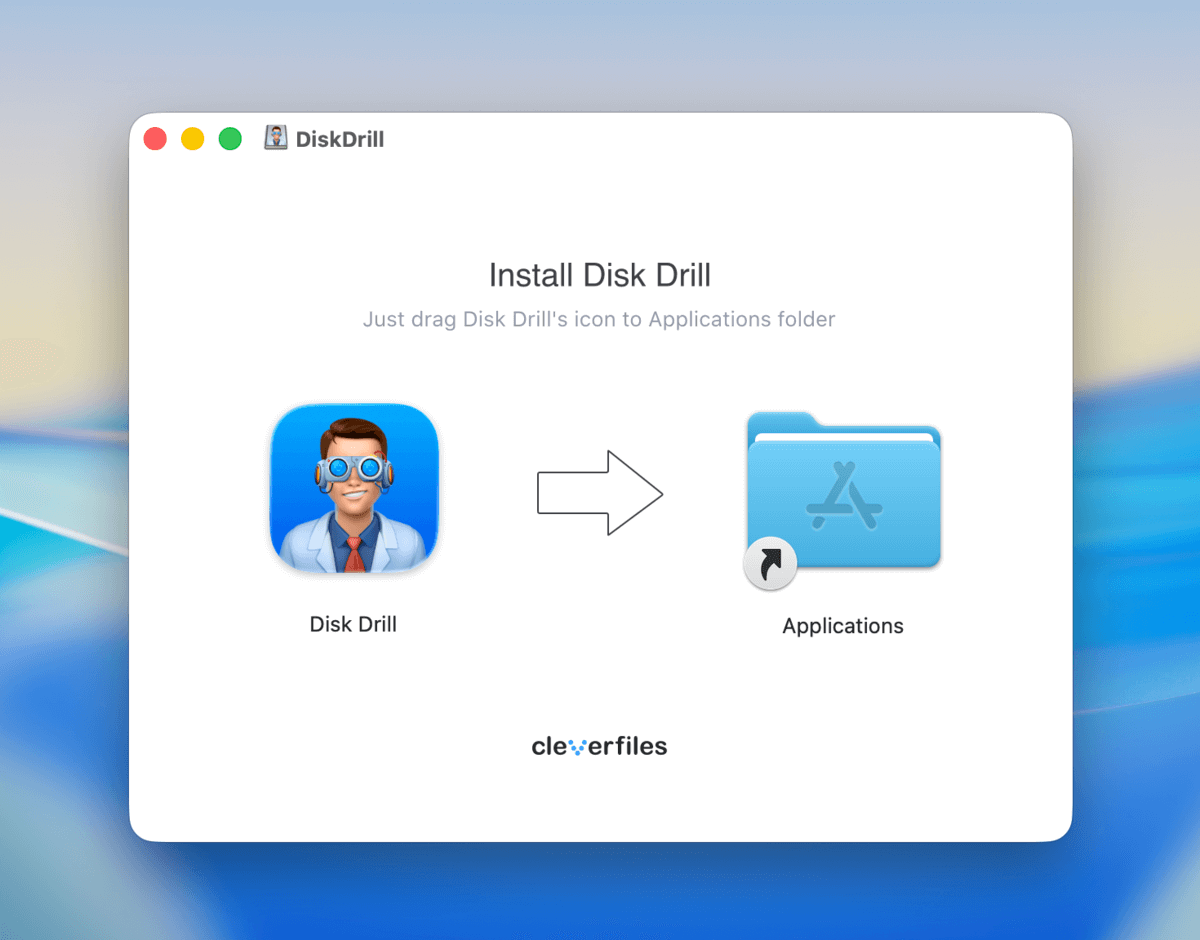
Step 2. Open Disk Drill. Then, click iPhones & iPads in the left sidebar and connect your iPad to your Mac using the appropriate cable (pay attention to the “Trust this computer?” prompt on your iPad and make sure to agree). Then, select your iPad and click Search for lost data. You may be asked to enter your passcode on your device before the scan begins.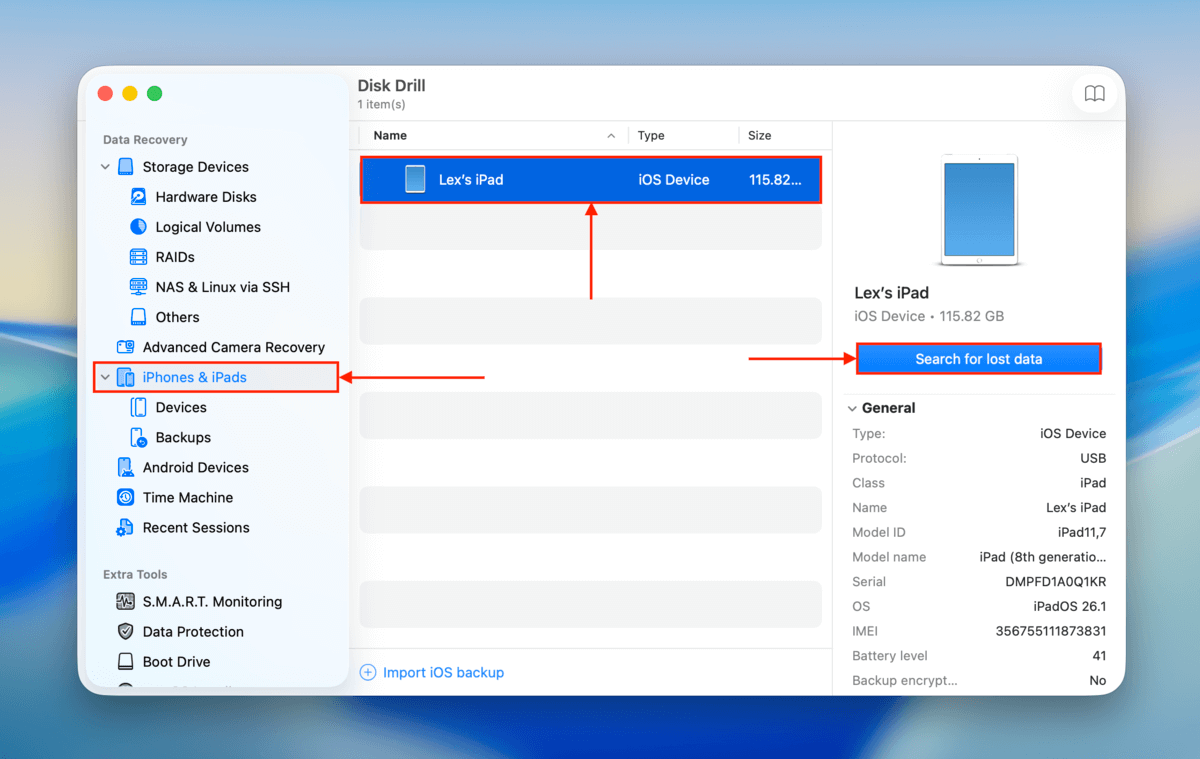
Step 3. After Disk Drill finishes the scanning process, it will display a list of file types. Select any file type to start browsing.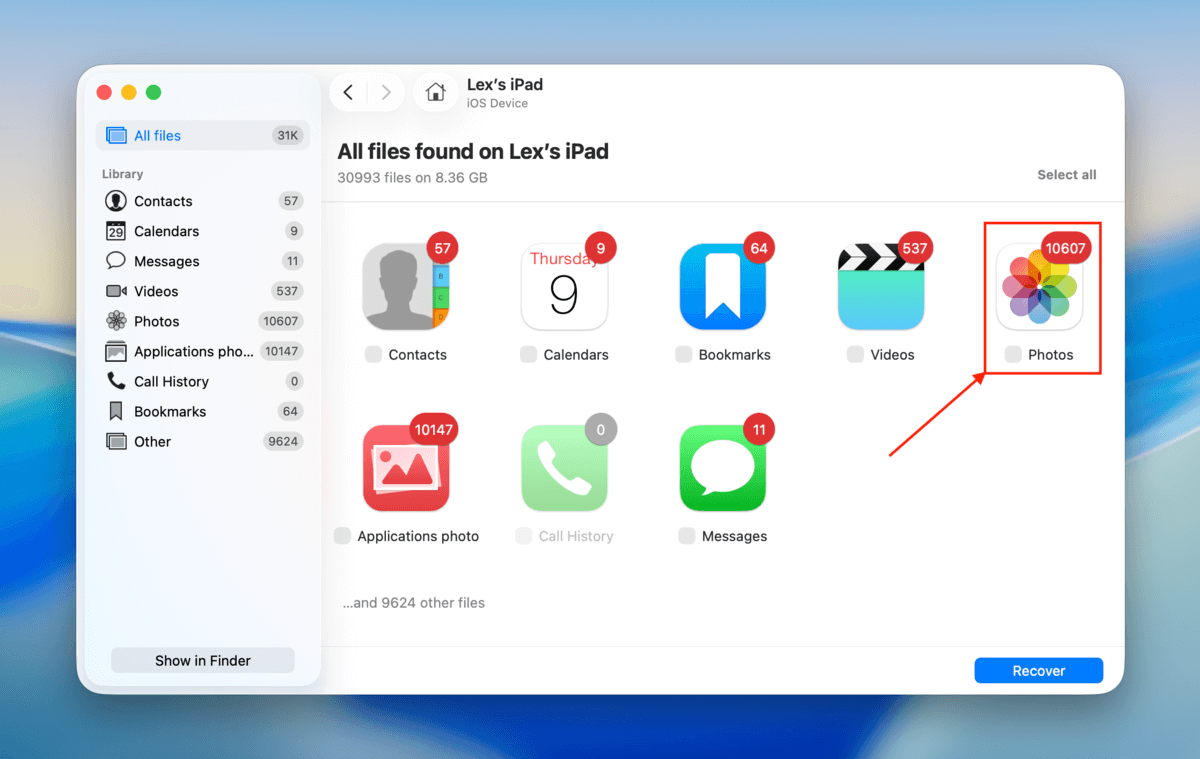
Step 4. When you find the files you want, right-click them and click Preview–this helps verify if the file is recoverable.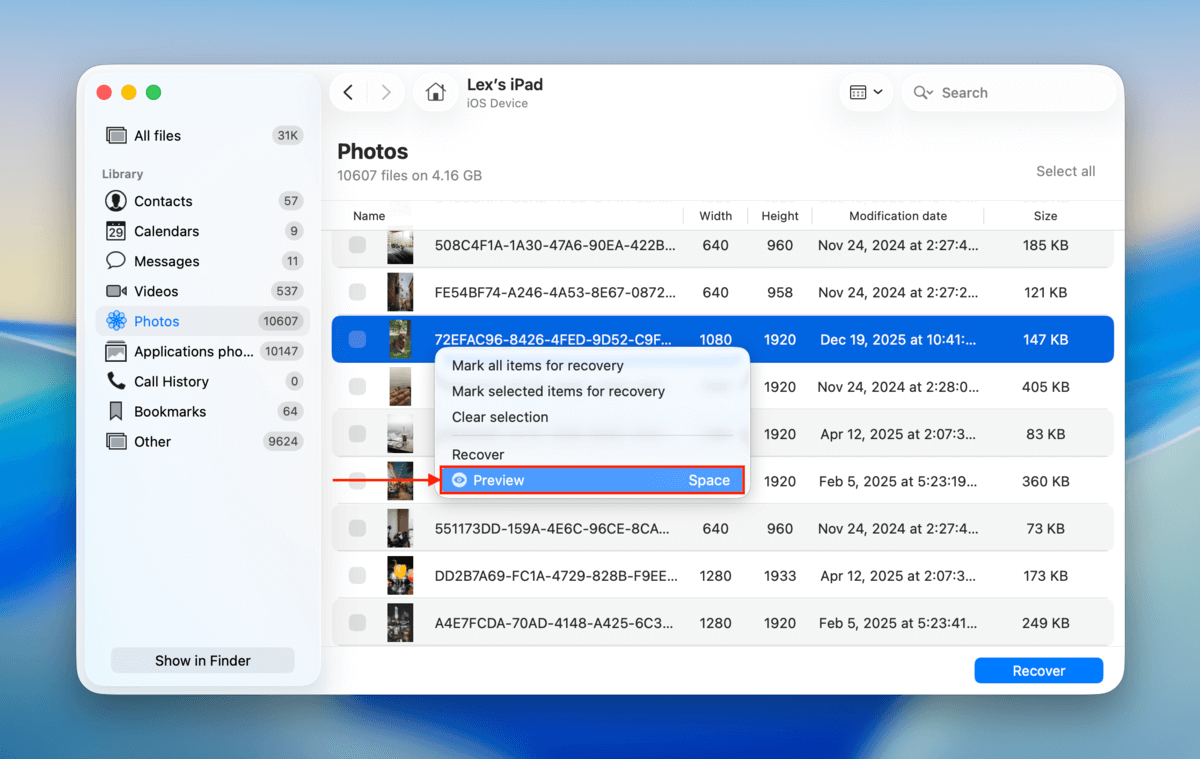
Step 5. Mark the boxes beside the files you want to restore and click Recover.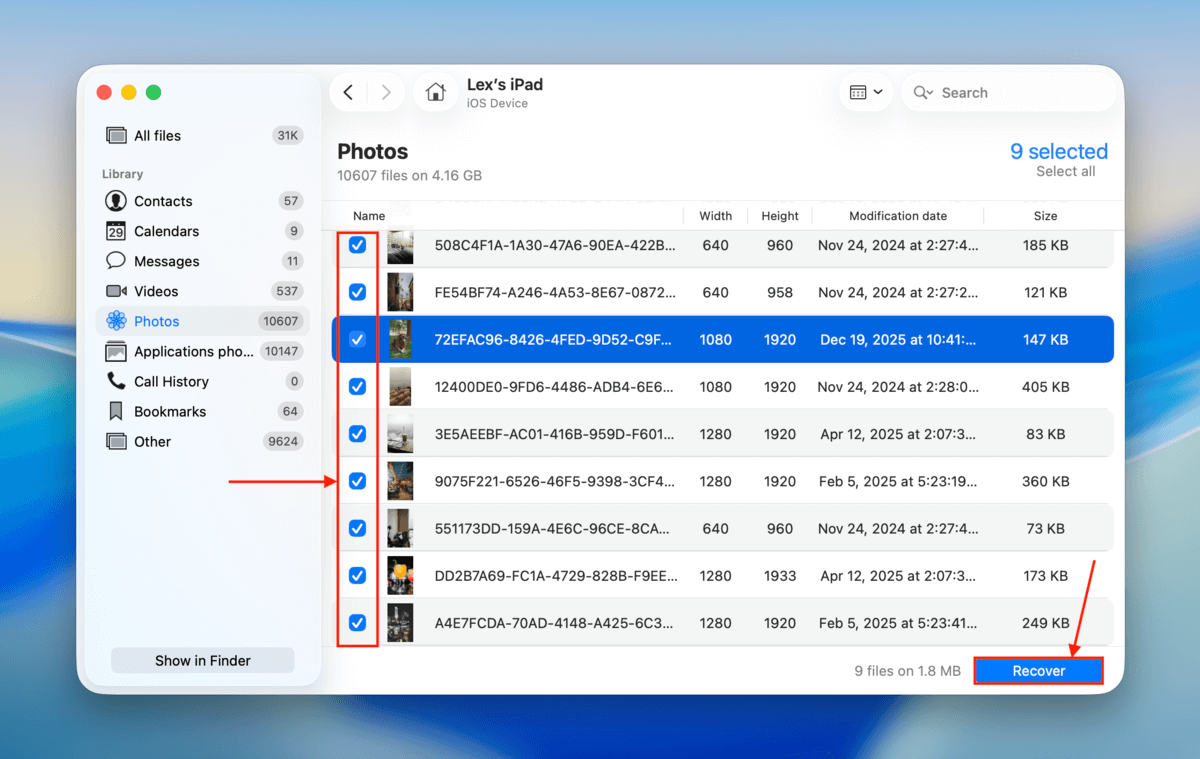
Step 6. Finally, select a location on your Mac where you want Disk Drill to save your recovered iPad files. Then, click Next.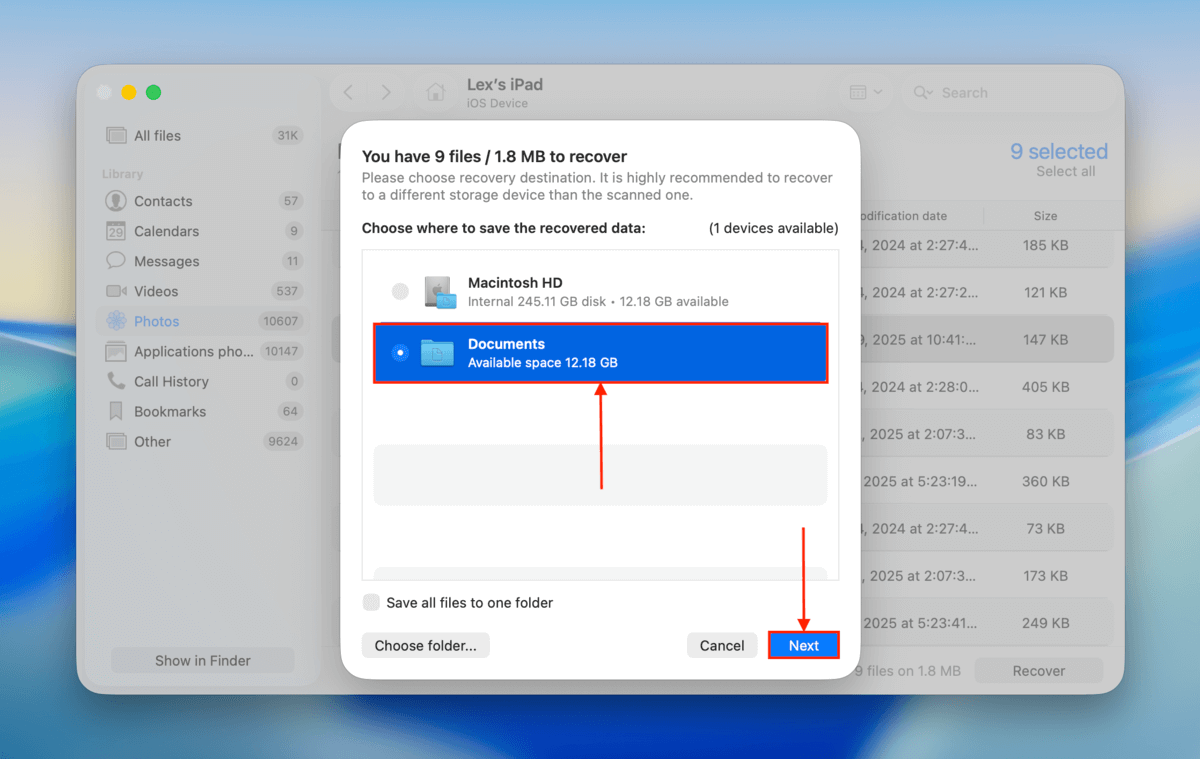
Conclusion
We hope that this list helps you get over your analysis paralysis. But if narrowing it down to 8 apps isn’t enough, we recommend just trying Disk Drill first. It’s the most beginner-friendly application in the list; you can test almost all of its features for free, and its preview feature allows you to figure out what data is even recoverable before committing any time or effort.
But while tools like Disk Drill are getting better by the day, data recovery itself will never be a 100% guarantee. The best way to never lose any important data is to routinely back up your files to a cloud server and preferably copy them to 1-2 external storage devices.